
Goals
Create goals by category, break them into milestones, record contributions, and track progress in the ERP Instfy Goal module.
The Goal module helps turn company objectives into measurable targets. You organize goals by category, set intermediate milestones, record contributions that move the goal forward, and follow everything on the tracking screen. Use goals for objectives such as building a cash reserve, reaching a revenue volume, or funding an investment.
Before you start
- Agree with leadership on which objectives are worth tracking. A few well-chosen goals work better than many.
- Have the target amount and deadline for each goal.
- If the goal is financial, keep Accounting up to date so the numbers match.
| Menu | What it is for |
|---|---|
| Goal > Category | Group goals by theme |
| Goal > Goals | Create and edit goals |
| Goal > Milestones | Break the goal into milestones |
| Goal > Contributions | Record progress toward the goal |
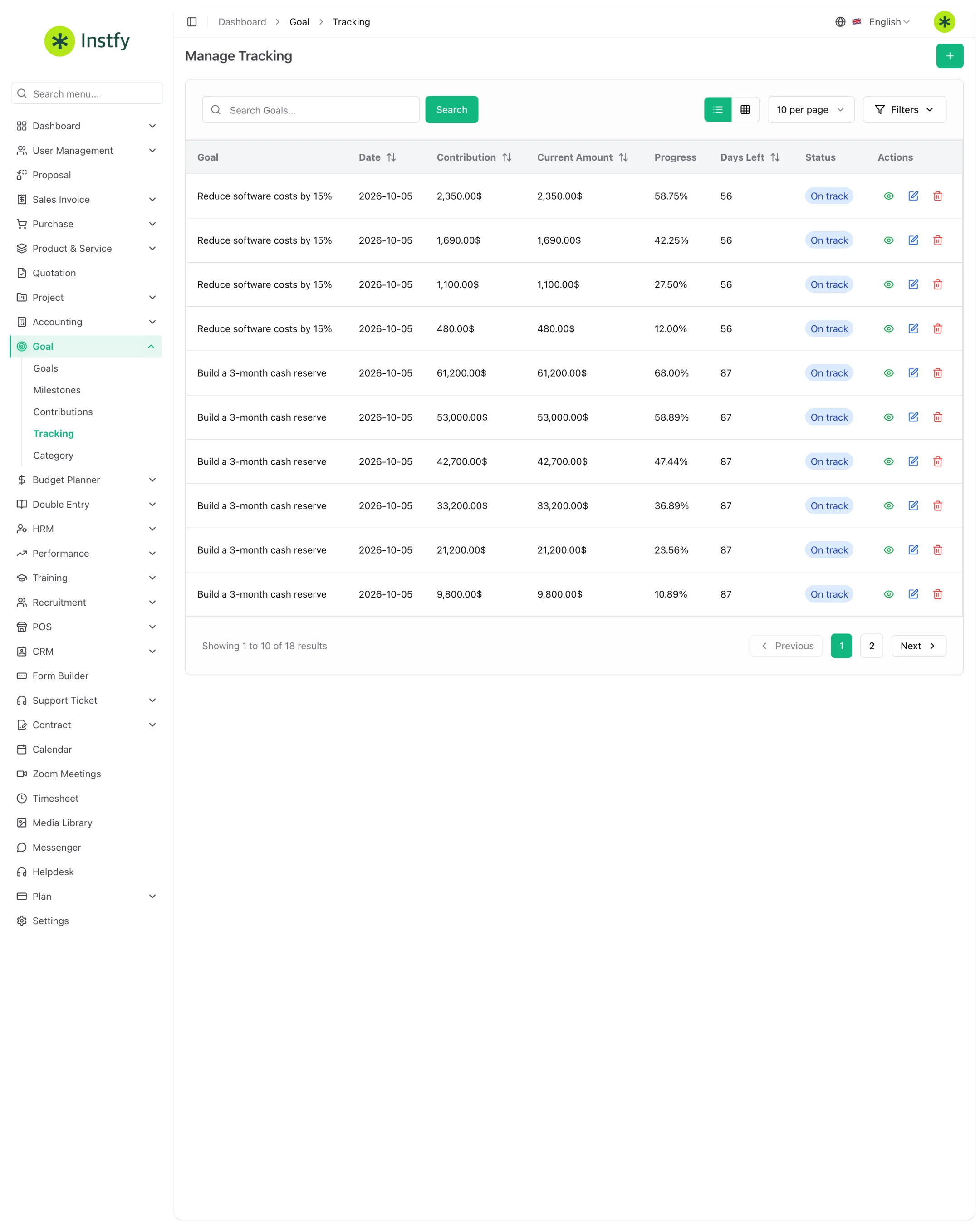
| Goal > Tracking | Track progress |
Create goal categories
Categories organize goals by theme, such as "Financial", "Sales", or "Investments".
Menu path: Goal > Category
- Open Goal > Category.
- Click Create (or the + icon).
- Enter the category name.
- Click Save. The category now appears on the goal form.
Create a goal
Menu path: Goal > Goals
- Open Goal > Goals.
- Click Create (or the + icon).
- Give the goal a specific name and select the category.
- Enter the target amount and the timeframe (start and end dates), along with the other requested details.
- Click Save. The goal appears in the list, ready for milestones and contributions.
Prefer specific, measurable goals. Instead of "improve cash", use "$100,000 reserve by December". That way progress can be calculated.
Break the goal into milestones
Milestones split a large goal into smaller stages, each with its own date. They show early on whether the goal is on pace.
Menu path: Goal > Milestones
- Open Goal > Milestones.
- Click Create (or the + icon).
- Select the goal, name the milestone, and enter the expected amount and date.
- Click Save. Repeat for each stage (e.g., one milestone per quarter).
Record contributions
Contributions are the concrete progress toward the goal, such as a deposit into the reserve or an amount reached in the period.
Menu path: Goal > Contributions
- Open Goal > Contributions.
- Click Create (or the + icon).
- Select the goal, enter the amount and date of the contribution, and add a note if you like.
- Click Save. The goal's progress is updated.
Record contributions whenever there is progress, not only at the end of the month. That way tracking shows the real trend and milestones stay comparable.
Track progress (Tracking)
Menu path: Goal > Tracking
- Open Goal > Tracking.
- For each goal, see how much has been achieved relative to the target.
- Compare progress with the milestones and the time remaining.
- For goals that are behind, decide with the team: speed up actions, adjust the deadline, or revise the target in Goal > Goals.
Use goals in your routine
- Every week: record contributions in Goal > Contributions.
- Every month: review Goal > Tracking at the results meeting.
- At each milestone: check whether the milestone was reached and adjust the plan.
- At the end of the cycle: close completed goals and create the ones for the next period.
Complete flow
Category > Goals > Milestones > Contributions > Tracking > Review and new cycle
Goals connect to the rest of ERP Instfy through financial planning:
- The Budget planner defines how much comes in and goes out by account.
- Accounting and Double entry show the actual results.
- Goals translate larger objectives into targets with milestones and contributions.
- Tracking closes the cycle and guides the next round of planning.
Frequently asked questions
What is the difference between a goal and a milestone?
The goal is the final objective, with a target amount and deadline. A milestone (Milestone) is an intermediate stage of that goal, with its own amount and date, that helps you see whether the pace is right.
What is a contribution?
It is the record of concrete progress toward the goal, such as an amount deposited or reached on a date. The contributions added together make up the progress shown in Goal > Tracking.
Do I need to use categories?
It is not mandatory in every case, but it helps a lot when there are several goals. Categories are created in Goal > Category and let you group and filter.
Can I change a goal's target amount?
Yes. Open the goal in Goal > Goals, click edit, change the target or deadline, and save. Use this sparingly, so you do not lose sight of the original plan.
What is the difference between the Goal module and the Budget Planner?
The Budget Planner plans revenue and expenses by account over a period. Goal tracks specific objectives with milestones and contributions. The two complement each other in planning.
Next steps
Combine goals with the budget and your statements to close the planning cycle.