
Quotations (estimates)
Build quotations with items, taxes, and an expiration date, send them to the customer for approval, and convert them into a sales invoice in just a few clicks.
A Quotation is the formal estimate you give the customer with the prices of products and services. Use a quotation when the customer asks "how much will it be?" and needs an official document to approve internally. Once approved, it is converted and moves on to invoicing.
Before you start
- Customer created in Accounting > Customers. See Accounting.
- Items created in Product & Service > Items, with the correct price and tax. See Products and services.
- Taxes, categories, and units defined in Product & Service > System Setup.
- Company email configured in Settings > Email Settings, if you will send the quotation from the system. See Settings.
Menu path: Quotation
Create a quotation
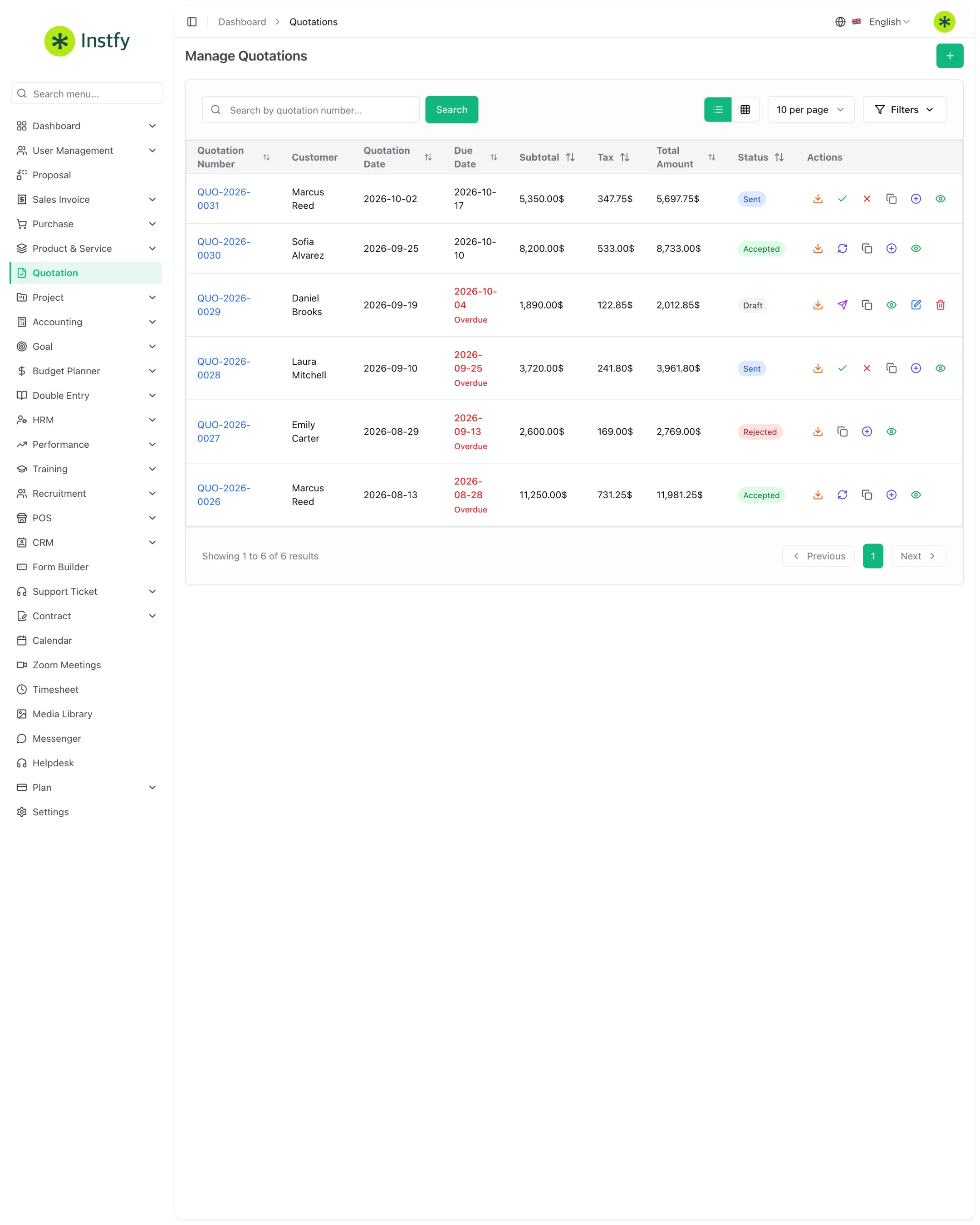
The quotation brings the items and the total amount together in a numbered document.
Menu path: Quotation
- Open Quotation in the side menu.
- Click Create (or the + icon).
- Select the customer and enter the quotation date and, when applicable, the expiration date.
- Add the items: choose the product or service, adjust the quantity, and check the price, tax, and discount.
- Review the calculated total and add notes if needed.
- Click Save. The quotation enters the list with its own number.
The quotation uses the Products and services catalog. Prices and taxes updated there show up correctly here, with no rework.
Send the quotation to the customer
Menu path: Quotation
- In the list, open the quotation (view icon) and check the final document.
- Use the send action to email it, or download/print it to send through another channel.
- Follow the status in the list to see what is waiting for a response.
Agree on a response deadline with the customer and note it in the notes field. This prevents forgotten quotations with outdated prices.
Update the quotation status
Recording the customer's response keeps your estimates organized.
Menu path: Quotation
- Open the quotation the customer has responded to.
- Change the status according to the customer's response, such as accepted or declined.
- If the customer asks for changes, edit the quotation, save it, and send it again.
Convert the quotation into an invoice
With the quotation approved, convert it to bill the customer without retyping items and amounts.
Menu path: Quotation
- Open the approved quotation.
- Click the convert action (Convert) available on the quotation.
- Review the generated document: customer, items, dates, and total.
- Save. The invoice now appears in Sales Invoice > Sales Invoice, linked to the original quotation.
Once converted, make any amount changes on the invoice, not on the quotation. That way the billing document always remains the official source.
Complete flow
CRM deal > Quotation > Approval > Sales invoice > Customer payment > Reports
- The opportunity starts in the CRM.
- The price is formalized in the quotation.
- Once approved, the quotation is converted into a sales invoice.
- The payment is recorded in Accounting > Customer Payments (Accounting).
- The result appears in Double entry and on the dashboards.
Frequently asked questions
Are a quotation and a proposal the same thing?
They are similar, but they live in different menus: Quotation and Proposal. Both list items and prices for the customer to approve. Choose the one that fits your process; if your company only needs a simple estimate, the quotation is enough.
Does a quotation reduce inventory?
No. A quotation is only an estimate. Inventory movements happen on completed sales, purchases, returns, and transfers between warehouses.
Can I reuse a quotation for another customer?
Yes. Use the duplicate action, when available in the list, change the customer, and adjust the items. If you prefer, create a new quotation from scratch.
What happens to the quotation after it is converted?
It stays in the list as a historical record and is marked as converted. Billing is then handled through the generated sales invoice.
Why does the tax not appear on the item?
Because the tax was not assigned to the item in the catalog. Open the item in Product & Service > Items, select the correct tax, and save. On the next quotation it will be filled in.
Next steps
Once the quotation is approved, move on to the invoice and collecting payment.