
Sales invoices and returns
Issue sales invoices, record customer payments, handle returns, and track what is paid, pending, or overdue.
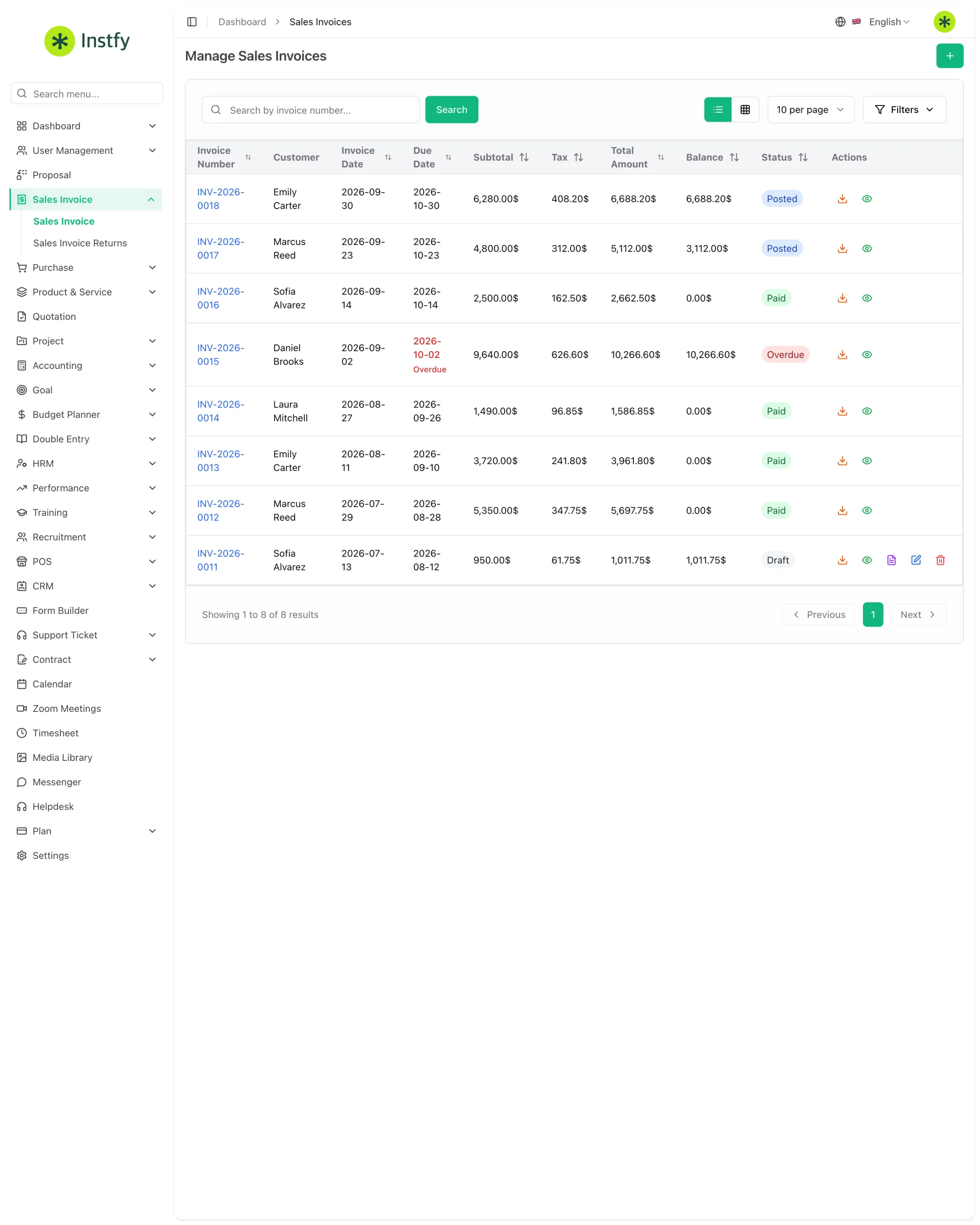
A Sales Invoice is the billing document issued to the customer. It is what turns a sale into an amount receivable and feeds the financial reports. When the customer returns goods or part of what they bought, you record a sales return (Sales Invoice Returns) linked to the original invoice.
Before you start
- Customer created in Accounting > Customers. See Accounting.
- Items created in Product & Service > Items, with price and tax. See Products and services.
- Bank account created in Accounting > Banking, to record where the money came in.
- Warehouse created in Purchase > Warehouses, if you sell products with inventory. See Purchasing and inventory.
- Currency and email configured in Settings. See Settings.
| Menu | What it is for |
|---|---|
| Sales Invoice > Sales Invoice | Issue and track sales invoices |
| Sales Invoice > Sales Invoice Returns | Record customer returns |
| Accounting > Customer Payments | Record payments received from customers |
Issue a sales invoice
Menu path: Sales Invoice > Sales Invoice
- Open Sales Invoice > Sales Invoice.
- Click Create (or the + icon).
- Select the customer and enter the issue and due dates.
- If the form asks for it, choose the warehouse the products will ship from.
- Add the items with quantity, price, tax, and discount. Check the calculated total.
- Click Save. The invoice appears in the list with its own number and an initial status.
Send the invoice to the customer
Menu path: Sales Invoice > Sales Invoice
- Open the invoice in the list (view icon).
- Check the customer details, items, taxes, and due date.
- Use the send action to email it, or download/print the document.
- After sending, the invoice status is updated.
Record the customer payment
Issuing the invoice does not mark it as paid. Record each payment so the open balance and cash are correct.
Menu path: Accounting > Customer Payments
- Open Accounting > Customer Payments.
- Click Create (or the + icon).
- Select the customer and the invoice being paid.
- Enter the amount received, the date, and the bank account where the money came in.
- Click Save. The invoice becomes partially paid or paid, depending on the amount.
If the invoice screen itself offers an add payment action, it has the same effect. The record also appears in Accounting > Customer Payments.
Track invoice status
Use the statuses to organize collections.
| Status | What it means |
|---|---|
| Draft | Invoice created, not yet sent |
| Sent | Issued and awaiting payment |
| Partially paid | Part of the amount has been received |
| Paid | Amount paid in full |
| Overdue | Past the due date without full payment |
The exact names may vary depending on the interface language.
Filter the list for overdue invoices at least once a week. It is the fastest way to organize collections and keep unpaid balances from piling up.
Record a sales return
Use a return when the customer sends products back or when part of the sale needs to be reversed. It keeps the history linked to the original invoice.
Menu path: Sales Invoice > Sales Invoice Returns
- Open Sales Invoice > Sales Invoice Returns.
- Click Create (or the + icon).
- Select the customer and the original sales invoice.
- Enter the returned items and quantities and, if applicable, the reason.
- Click Save. The return enters the list linked to the invoice.
To refund money or leave a credit for the customer, also use Accounting > Credit Notes. See Accounting.
Complete flow
Proposal or Quotation > Sales invoice > Customer payment > Return (if any) > Reports
- The offer approved in Proposals or Quotations is converted into an invoice.
- The invoice is sent and tracked by status.
- The payment is recorded in Accounting > Customer Payments.
- Returns go into Sales Invoice Returns and, when there is a refund or credit, into Credit Notes.
- Everything appears in the Accounting and Double entry reports.
Frequently asked questions
Why is my invoice still showing as unpaid?
Because the payment has not been recorded yet. Issuing the invoice creates the amount receivable, but the status only changes when you record the payment in Accounting > Customer Payments or through the payment action on the invoice itself.
Can I record a partial payment?
Yes. Enter only the amount received. The invoice is marked as partially paid and the remaining balance stays open until the next payment.
What is the difference between a sales return and a credit note?
A sales return (Sales Invoice Returns) records the items that came back, linked to the original invoice. A credit note (Accounting > Credit Notes) records the amount you owe the customer, either as a refund or to apply against future purchases.
Can I convert a quotation into an invoice?
Yes. Open the approved quotation or proposal and use the convert action. The invoice is created with the same customer and the same items.
Does the invoice reduce inventory?
For products sold from a warehouse, the sale moves the inventory of that warehouse. Services do not move inventory. Check the balances in Purchasing and inventory.
Next steps
With invoices and payments up to date, track the results in finance.