
Getting to know the interface
Learn to navigate ERP Instfy: the sidebar and its groups, top bar, language, lists, filters, search, export and standard buttons.
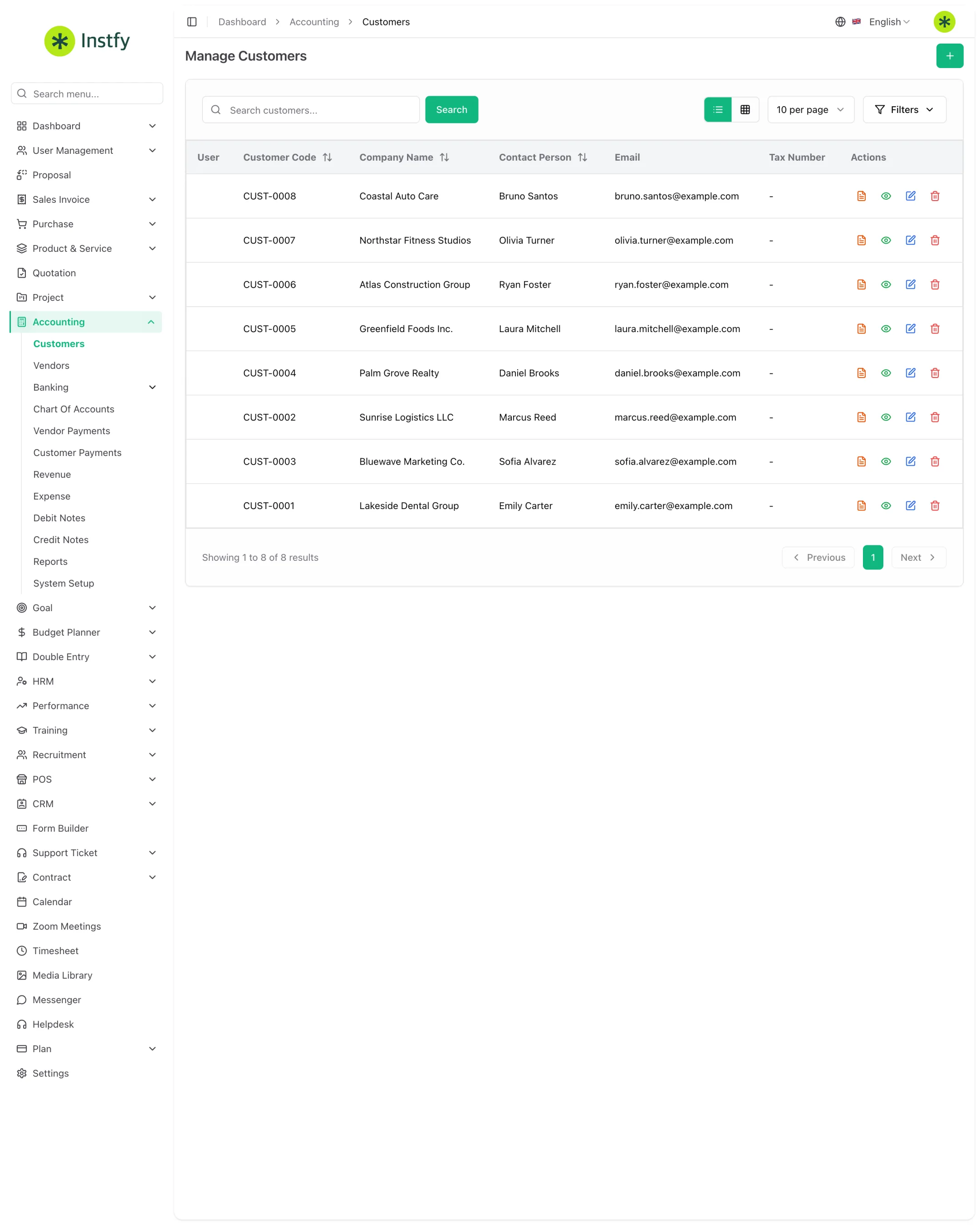
Once you understand one ERP Instfy screen, you understand almost all of them. This page introduces the three areas of the screen (top bar, sidebar and content area) and the patterns that repeat across every module.
Before you start
- Log in at https://erp.instfy.com/login. See First access and login.
- Remember that what appears on screen depends on your plan and your role. See Roles and permissions.
Top bar
At the top of the screen are the controls that apply to the whole system:
- Toggle sidebar: collapses or expands the sidebar, giving more room to lists and reports.
- Language selector: shows the current language (for example, English) and lets you change it.
- Your name or avatar: access to your profile and the log out option.
Sidebar and its groups
The sidebar lists the modules from top to bottom. Groups with subitems open when clicked. For the Company user, the order is:
| Group | Main subitems |
|---|---|
| Dashboard | Project, Account, HRM, Recruitment, POS, CRM and Support Dashboard |
| User Management | Roles, Users |
| Proposal | List of proposals |
| Sales Invoice | Sales Invoice, Sales Invoice Returns |
| Purchase | Purchase Invoice, Purchase Returns, Warehouses, Transfers |
| Product & Service | Items, System Setup |
| Quotation | List of quotations |
| Project | Projects, Projects Report, System Setup |
| Accounting | Customers, Vendors, Banking, Chart Of Accounts, Vendor Payments, Customer Payments, Revenue, Expense, Debit Notes, Credit Notes, Reports, System Setup |
| Goal | Goals, Milestones, Contributions, Tracking, Category |
| Budget Planner | Budget Periods, Budget, Budget Allocations, Budget Monitoring |
| Double Entry | Ledger Summary, Trial Balance, Balance Sheets, Profit & Loss, Reports |
| HRM | Employees, Payslip, Attendance, Leave Management, employee lifecycle events, System Setup |
| Performance | Indicators, Employee Goals, Review Cycles, Employee Reviews, System Setup |
| Training | Training Types, Trainers, Training List |
| Recruitment | Jobs, candidates, interviews, offers and onboarding |
| POS | Add POS, POS Orders, Print Barcode |
| CRM | Leads, Deals, System Setup |
| Form Builder | Forms |
| Support Ticket | Tickets, Knowledge Base, FAQ, Contact, System Setup |
| Contract | Contracts, Contract Types |
| Standalone items | Calendar, Zoom Meetings, Timesheet, Media Library, Messenger, Helpdesk |
| Plan | Setup Subscription Plan, Bank Transfer Requests, Orders |
| Settings | Company settings |
Almost every module has a System Setup item at the end of the group. That is where the module's supporting lists live (categories, types, stages, pipelines). Set up System Setup before you start recording entries.
Collapse and expand the menu
- Click the toggle sidebar icon in the top bar.
- The menu collapses and the content area takes up the full width of the screen.
- Click again to expand the menu.
Change the language
- Click the language selector in the top bar.
- Choose the language from the list.
- The interface is displayed in the new language.
Lists, filters and search
Most modules open on a list of records (customers, invoices, employees, tickets). In lists you will usually find:
- Search: a field to find records by name, number or other text.
- Filters: options to narrow the list by period, status, customer or other criteria, depending on the screen.
- Items per page: a selector such as 10 per page to choose how many records to show, with Previous and Next to move between pages.
- Status: badges that show the record's state (for example, draft, sent, paid).
Standard buttons
In the guides in these docs, when you see "click Create", look for the Create button followed by the item name at the top of the list on that screen.
| Button | What it does |
|---|---|
| Create ... | Sits at the top of the list and includes the item name, for example Create Customer for customers or Create Sales Proposal for proposals. Opens the form to add a new record. |
| View (eye icon) | Shows the record details. |
| Edit (pencil icon) | Opens the record for changes. |
| Delete (trash icon) | Deletes the record after asking for confirmation. |
| Save or Save Changes | Saves what you filled in. |
| Cancel | Closes the form without saving. |
Deleting asks for confirmation and, in general, cannot be undone. Before deleting a customer, product or user that already has documents linked to it, make sure this will not affect your reports.
Export and print
On document and report screens, such as invoices, quotations and accounting reports, there are usually options to download, export or print. Availability varies by screen: if the option does not appear, the screen does not offer export or your role does not have that permission.
Dashboards
The Dashboard group brings together seven dashboards with indicators and charts for each area. They are calculated from what is recorded in the modules. See Dashboards by area.
Frequently asked questions
Why does my menu have fewer items than this page shows?
The menu shows only the modules included in the company's plan and allowed by your role. A finance team member, for example, may not see the HRM group. See Roles and permissions.
What is the System Setup item that appears in several modules?
It is the area for each module's supporting records, such as product categories, account types, task stages, CRM pipelines or HR branches. These records feed the option lists in the forms.
How do I get back to the home dashboard?
Open the Dashboard group in the sidebar and choose the dashboard for your area.
Why don't I see a Create or Delete button?
Buttons depend on your role's permissions. If you need to create or delete records in a module, ask the administrator to adjust your role in User Management > Roles.
Next steps
Now that you know the screen, learn about access roles and set up your company.