
Zoom meetings (Zoom Meetings)
Connect your company's Zoom account and schedule online meetings with customers, candidates, and your team right from ERP Instfy.
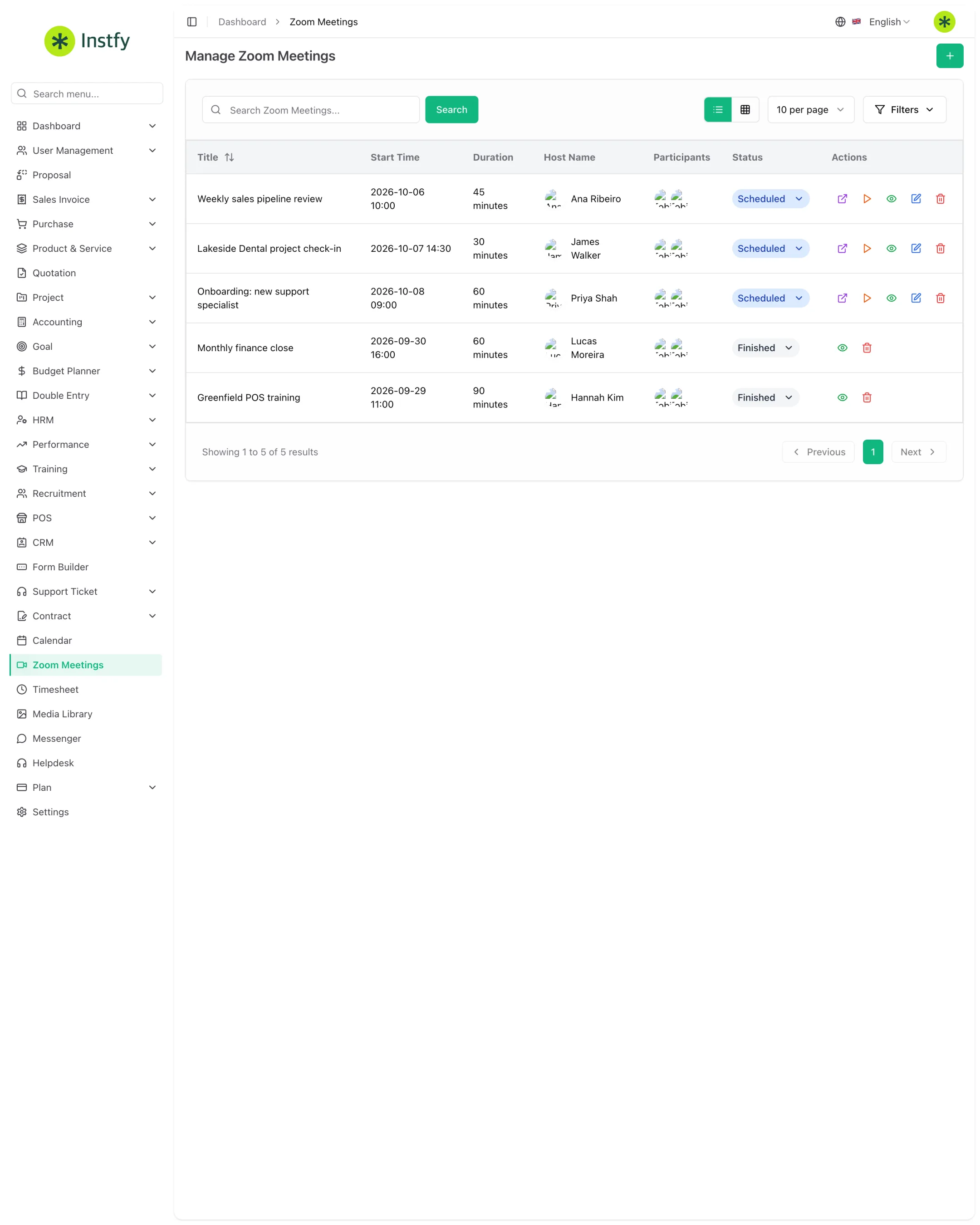
Zoom Meetings is a standalone item in the side menu that creates Zoom meetings from ERP Instfy. You schedule, choose the participants, and get the meeting link without leaving the system. The connection to your Zoom account is made once, in Settings > Zoom Meeting Settings.
Before you start
- Have a company Zoom account with permission to create apps in the Zoom App Marketplace.
- Internal participants must be set up as users. See Users and roles.
- The Zoom connection only needs to be made by one user with access to settings.
Connect your Zoom account
Without this connection, the system cannot create meetings on your behalf.
Menu path: Settings > Zoom Meeting Settings
- In the Zoom App Marketplace, create an app for the integration and copy the generated credentials.
- In ERP Instfy, open Settings and go to the Zoom Meeting Settings tab.
- Paste the credentials into the corresponding fields.
- Click Save Changes.
- Create a test meeting to confirm the connection works.
The Zoom credentials allow meetings to be created on the company account. Store them securely and do not send them in messages or tickets.
Schedule a meeting
Schedule through ERP Instfy to keep the meeting tied to your company's routine.
Menu path: Zoom Meetings
- Open Zoom Meetings in the side menu.
- Click the + button (Create).
- Enter the title, date, time, duration, and participants.
- Click Save. The meeting is created in Zoom and appears in the list.
Join the meeting and share the link
The meeting link is available in the list, so you can join and send it to whoever needs it.
Menu path: Zoom Meetings
- Open Zoom Meetings and find the meeting.
- Use the join action or copy the meeting link.
- Send the link to external participants, such as customers or candidates.
- At the scheduled time, join from the list itself.
For job interviews, schedule the meeting here and record the interview in Recruitment > Interviews. That way the hiring process is complete. See Recruitment and onboarding.
View scheduled and past meetings
The list works as a history of your company's online meetings.
Menu path: Zoom Meetings
- Open Zoom Meetings.
- Check upcoming and past meetings, with date and status.
- Edit or delete a meeting that was rescheduled or canceled.
Complete flow
- Create the app in Zoom and copy the credentials.
- Configure Settings > Zoom Meeting Settings.
- Schedule meetings in Zoom Meetings.
- Share the link and join at the scheduled time.
- Check the history in the list and, if you use it, on the Calendar.
Frequently asked questions
Do I need a paid Zoom account?
ERP Instfy uses your Zoom account. The duration and participant limits are those of your Zoom plan. Check the terms directly with Zoom.
Why do I get an error when creating a meeting?
In most cases, the credentials in Settings > Zoom Meeting Settings are incorrect or expired, or the app in Zoom was not activated. Review the credentials and save again.
Do external participants need an ERP Instfy login?
No. They join through the Zoom link, as with any meeting.
Can I use Google Meet or another tool?
The native integration available is with Zoom. For other tools, create the meeting there and record the appointment in the corresponding ERP Instfy module.
Next steps
See your meetings on the calendar and explore the other integrations.