
Contracts
Create contracts with customers, organize them by type, store attachments, collect signatures, and track terms and renewals.
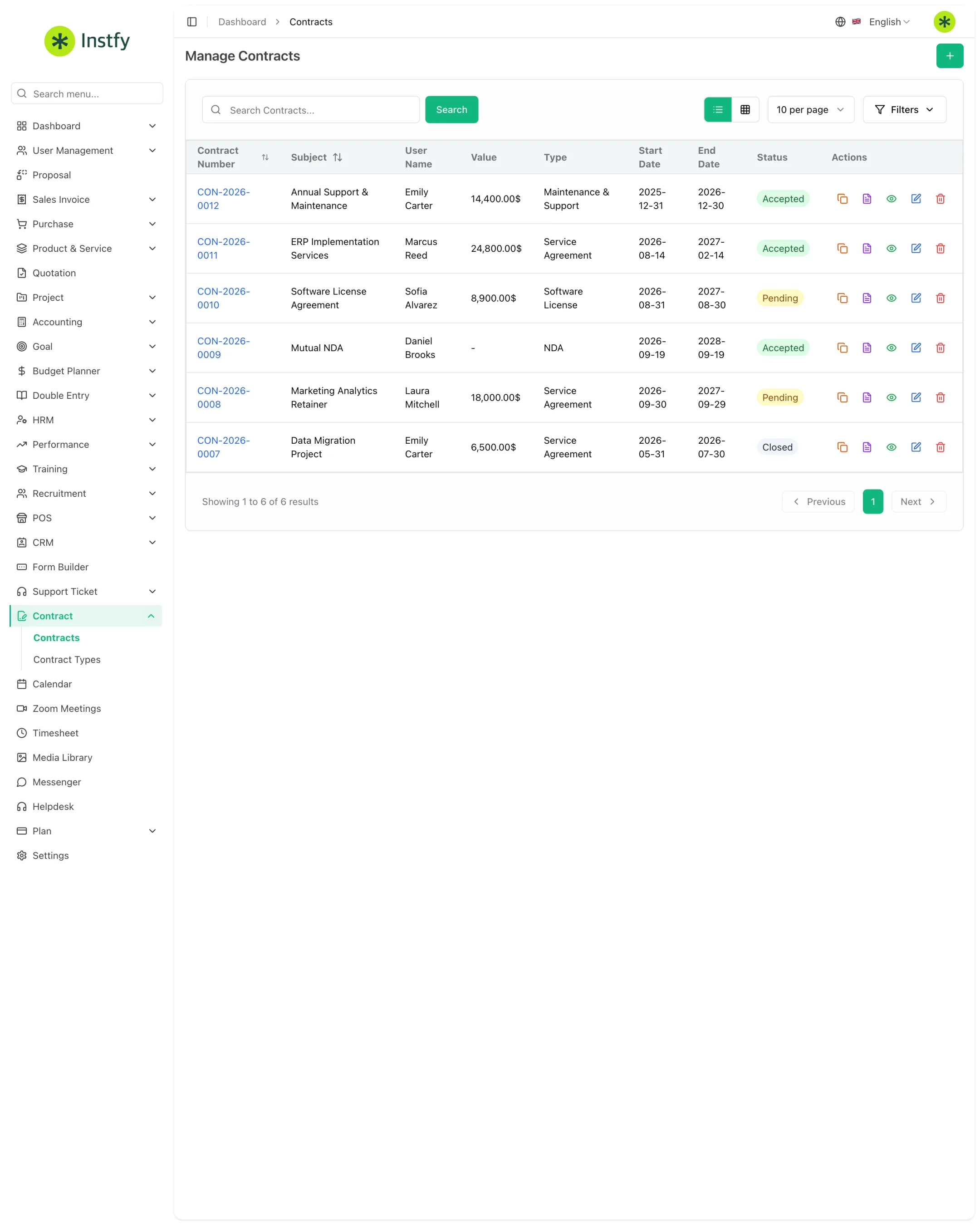
The Contract module centralizes your formal agreements with customers: who the party is, the amount, the term, the scope, and the documents. Use contracts for recurring services, medium-term supply agreements, or any agreement that needs a recorded term and signature.
Before you start
- Customer created in Accounting > Customers. See Accounting.
- Contract types created in Contract > Contract Types (task below).
- Module settings reviewed in Settings > Contract Settings. See Settings.
- Company email configured in Settings > Email Settings, if you will send the contract from the system.
| Menu | What it is for |
|---|---|
| Contract > Contracts | Create and track contracts |
| Contract > Contract Types | Classify contracts by type |
| Settings > Contract Settings | General module preferences |
Create contract types
Types organize the list and the reports, for example "Service agreement", "Monthly support", or "Lease".
Menu path: Contract > Contract Types
- Open Contract > Contract Types.
- Click Create (or the + icon).
- Enter the name of the contract type.
- Click Save. The type now appears on the contract form.
Review the contract settings
The module preferences, such as contract numbering, are in their own tab in Settings.
Menu path: Settings > Contract Settings
- Open Settings and select the Contract Settings tab.
- Review the available options and adjust them to your company's standards.
- Click Save Changes.
Create a contract
Menu path: Contract > Contracts
- Open Contract > Contracts.
- Click Create (or the + icon).
- Enter the contract subject and select the customer and the contract type.
- Fill in the amount and the start and end dates of the term.
- Describe the agreed scope and terms in the description field.
- Click Save. The contract appears in the list with an initial status.
Always enter the end date. It is what shows which contracts are about to expire and need renewal.
Complete the contract: attachments, comments, and notes
Keep the entire history of the agreement in the contract itself, without hunting for files in folders or emails.
Menu path: Contract > Contracts
- In the list, open the contract you want (view icon).
- In the attachments area, upload the related files, such as the accepted proposal or the final signed version.
- Use comments to record conversations and notes for internal remarks, depending on the sections available on the screen.
- The information is saved in the contract and visible to anyone with access to it.
Collect the signature
The contract can be signed inside ERP Instfy, recording who signed and when.
Menu path: Contract > Contracts
- Open the contract and review the amount, dates, and scope.
- Send the contract to the customer by email, using the send action on the contract screen.
- Use the signature action to record the company's signature and follow the customer's.
- Once the signatures are recorded, the contract status is updated.
Review everything before sending for signature. Changing a contract after it has been signed creates legal uncertainty; in those cases, it is better to create a new contract or an amendment.
Track the term and renew
Menu path: Contract > Contracts
- Open Contract > Contracts and look at the end dates and status of each contract.
- Identify the contracts expiring soon.
- To renew, use the duplicate action (when available) or create a new contract with the new dates and amounts.
- Keep the previous contract in the list as history.
Complete flow
CRM deal > Proposal > Contract > Signature > Recurring sales invoices > Payments > Reports
- The opportunity is worked in the CRM and the offer is approved in Proposals.
- The agreement is formalized in the contract, with attachments and signature.
- Billing for each period is done in Sales invoices.
- Payments are recorded in Accounting.
Frequently asked questions
Where do I create contract types?
In Contract > Contract Types. The types you create appear as options on each contract's form and help filter the list.
Does the contract generate an invoice automatically?
Do not count on it. The contract records the agreement; billing is done in Sales Invoice > Sales Invoice, one invoice for each period or delivery.
Can I store the signed PDF in the contract?
Yes. Open the contract and upload the file in the attachments area. That way the official document stays with the record, accessible to the authorized team.
What is in Contract Settings?
It is the Settings tab with the general preferences for the contracts module. Review it before creating your first contracts and save with Save Changes.
How do I renew a contract that is expiring?
Create a new contract with the new dates and amounts, or duplicate the current one when the action is available. The previous contract stays in the list as history.
Next steps
With the contract signed, organize billing and financial tracking.