
POS: counter sales
Sell at the counter with the ERP Instfy POS: choose the warehouse, build the cart, complete the sale, look up orders, and print barcode labels.
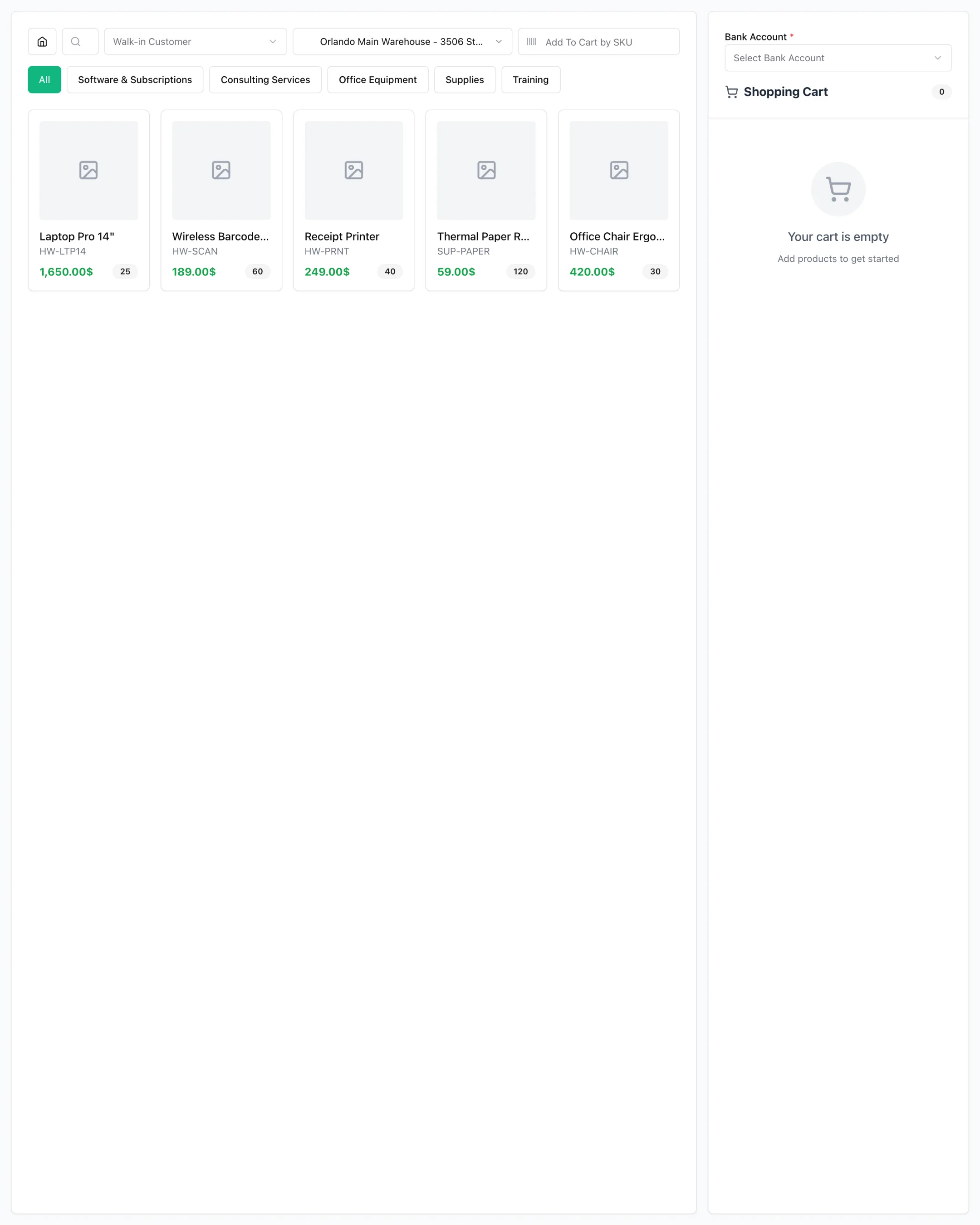
The POS (point of sale) is the quick sales screen in ERP Instfy. You select the customer and the warehouse, add products to the cart, and complete the sale on the spot. Each sale becomes an order in POS Orders, reduces inventory in the warehouse used, and appears on the POS Dashboard. Use the POS in stores, at counters, at trade shows, or for any in-person sale.
Before you start
- Products created in Product & Service > Items, with price, tax, and code. See Products and services.
- Warehouse created in Purchase > Warehouses, with inventory of the products. See Purchasing and inventory.
- Customers created in Accounting > Customers, if you want to identify the buyer. See Accounting.
- Cashier users with POS permissions. See Users and roles.
| Menu | What it is for |
|---|---|
| POS > Add POS | Sales screen (cart) |
| POS > POS Orders | List of completed sales |
| POS > Print Barcode | Barcode labels |
| Dashboard > POS Dashboard | POS sales numbers |
Make a POS sale
Menu path: POS > Add POS
- Open POS > Add POS.
- Select the warehouse the products will come from. The product list shows what is available there.
- Select the customer, if you want to identify the buyer.
- Click products to add them to the cart, or search by name or code. Adjust the quantities in the cart.
- Apply a discount, if any, and check the taxes and total.
- Complete the sale and confirm the payment in the window that opens.
- The sale is recorded, the warehouse inventory is updated, and the cart is cleared for the next customer.
Inventory is tracked by warehouse. If a product does not appear or shows no stock, check that you chose the right warehouse and that stock has been added to it through a purchase or transfer.
Look up orders and reprint receipts
All POS sales are recorded as orders, for cash reconciliation and after-sales service.
Menu path: POS > POS Orders
- Open POS > POS Orders.
- Find the sale by date, number, or customer.
- Open the order to see the items, amounts, and payment.
- Use the print action to generate another copy of the receipt when the customer asks.
Print barcode labels
Barcode labels speed up checkout: just scan the code and the product goes into the cart.
Menu path: POS > Print Barcode
- Open POS > Print Barcode.
- Select the warehouse and the products that need labels.
- Enter the number of labels for each product.
- Generate the preview and send it to the printer.
Print labels right after receiving goods. A labeled product on the shelf means faster sales and fewer typing errors at the register.
Track sales on the POS Dashboard
Menu path: Dashboard > POS Dashboard
- Open Dashboard > POS Dashboard.
- Check the sales totals and the trend over the period.
- See which products and time periods concentrate the most activity.
- Use this information to plan restocking and cashier scheduling.
Complete flow
Purchase from vendor > Inventory in the warehouse > POS sale > Order in POS Orders > Reports and POS Dashboard
- The product is created in Products and services.
- Inventory enters the warehouse through a purchase invoice or transfer.
- The sale happens in POS > Add POS, using that warehouse.
- The order is stored in POS > POS Orders and the numbers appear on the dashboard.
- For sales on credit terms or with formal billing, use Sales invoices instead of the POS.
Frequently asked questions
Why do I need to choose a warehouse in the POS?
Because inventory in ERP Instfy is tracked by warehouse. The POS shows and reduces the balance of the chosen warehouse, which lets you run several stores or separate inventories.
Why does a product not appear in the POS?
Usually because it has no stock in the selected warehouse or is not set up as a product. Check the record in Product & Service > Items and the warehouse balance in Purchase > Warehouses.
Where do I see the sales made in the POS?
In POS > POS Orders, with the details of each order, and in Dashboard > POS Dashboard, with the totals for the period.
Can I sell without identifying the customer?
It depends on your account configuration, but the common practice at the counter is to use a generic customer, such as "Walk-in Customer", created in Accounting > Customers.
How do I print barcodes for my products?
In POS > Print Barcode. Choose the warehouse, the products, and the number of labels, generate the preview, and print.
Next steps
Keep your catalog and inventory in order so the counter never stops.