
Internal messenger (Messenger)
Chat with your team inside ERP Instfy, exchange messages and files, and keep work conversations right next to the system.
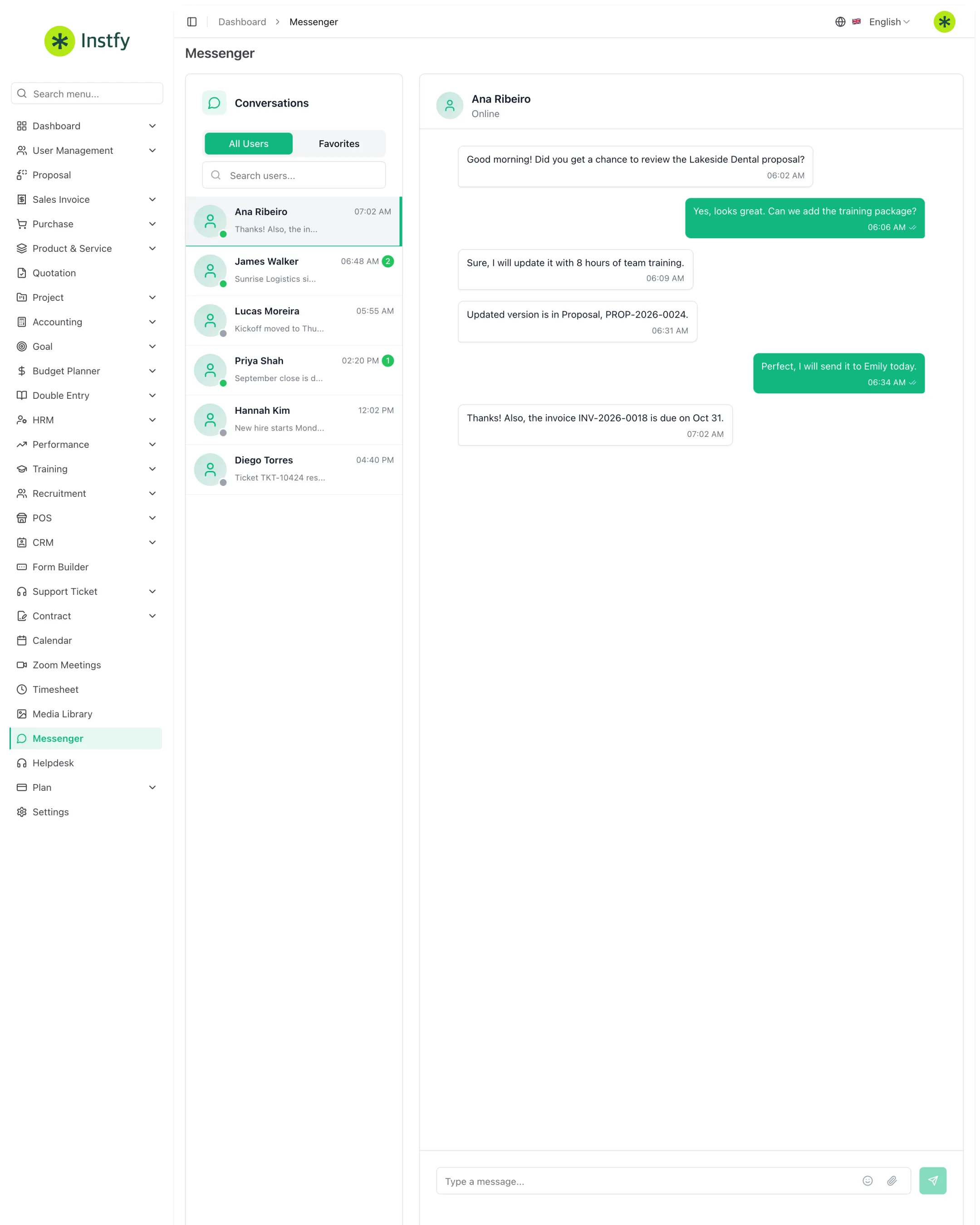
Messenger is the internal chat in ERP Instfy, a standalone item in the side menu. It is for quick conversations between users in your company, such as aligning on a task, asking for an approval, or giving a heads-up about a customer, without relying on personal apps.
Before you start
- Only people set up as users in your company appear in Messenger. Add your team in Users and roles.
- Confirm that each person's role has access to Messenger in Roles and permissions.
Start a conversation
Begin by selecting the person you want to talk to.
Menu path: Messenger
- Open Messenger in the side menu.
- In the contact list, find the person. Use search if your team is large.
- Click the name to open the conversation.
Send messages and files
Write concisely and attach whatever the person needs to take action.
Menu path: Messenger > (open conversation)
- With the conversation open, type your message in the text field at the bottom.
- To send a file, use the attachment option, if available, and select the file.
- Send it. The message appears in the conversation history.
For decisions that need to be recorded in a project or support case, also use the comments on the task or ticket. Messenger is great for speed, but the official record should live in the corresponding module.
Review past conversations
The history is saved, so you can pick up any topic again.
Menu path: Messenger
- Open Messenger.
- Click the contact to see the previous conversation.
- Scroll through the history to find the message you want and continue the conversation.
Complete flow
- The team is set up as system users.
- Each person opens Messenger and chooses a contact.
- Messages and files are exchanged in the conversation.
- Important decisions are also recorded in the project, task, or ticket.
Frequently asked questions
Can I chat with customers through Messenger?
No. Messenger is for users in your company. To serve customers, use Support Ticket.
Why does a team member not appear in the list?
They are probably not set up as a user, or their role does not have access to Messenger. Check in User Management > Users and User Management > Roles.
Are conversations saved?
Yes. The history remains available when you open the conversation with that contact again.
Does Messenger replace email?
For quick internal conversations, yes. For formal communication with customers and vendors, keep using email and the system's dedicated modules.
Next steps
Combine Messenger with the calendar and meetings to organize your team's routine.