
Accounting and finance
Set up customers, vendors, and bank accounts, record payments received and made, revenue and expenses, and generate financial reports.
The Accounting module is the financial hub of ERP Instfy. This is where you keep customer and vendor records, bank accounts, the chart of accounts, payments received and made against invoices, standalone revenue and expenses, debit and credit notes, and reports. Everything sold or bought in the other modules ends up here as money that came in or went out.
Before you start
- Currency and company details defined in Settings. See Settings.
- Permissions for the finance team reviewed. See Roles and permissions.
- Agree on the structure of the chart of accounts with your accountant before entering the first amounts.
| Menu | What it is for |
|---|---|
| Customers / Vendors | Customers and vendors |
| Banking | Bank accounts and transfers between accounts |
| Chart Of Accounts | Chart of accounts |
| Customer Payments / Vendor Payments | Invoice payments received and made |
| Revenue / Expense | Standalone revenue and expenses |
| Debit Notes / Credit Notes | Debit and credit notes |
| Reports | Financial reports |
| System Setup | Account types and other settings |
Review System Setup and the chart of accounts
The chart of accounts classifies every amount that comes in or goes out. It is the basis for reports and for Double entry.
Menu path: Accounting > System Setup and Accounting > Chart Of Accounts
- Open Accounting > System Setup and review the account types and other available settings.
- Open Accounting > Chart Of Accounts to see the existing accounts.
- To add an account, click Create (or the + icon), enter the name, code, and type, and click Save.
Validate the chart of accounts with your accountant before the first entry. Changing the structure later is much more work.
Set up customers and vendors
Menu path: Accounting > Customers and Accounting > Vendors
- Open Accounting > Customers and click Create.
- Fill in the customer details, such as name, email, phone, and billing address.
- Click Save. The customer becomes available in proposals, quotations, invoices, contracts, and the POS.
- Repeat the process in Accounting > Vendors for vendors, which are used on purchase invoices.
Set up bank accounts and transfer between accounts
Menu path: Accounting > Banking
- Open the Accounting > Banking submenu and go to the bank account list.
- Click Create and enter the account details, such as name, bank, and opening balance.
- Click Save. The account now appears in payments received and made, revenue, and expenses.
- To move money between accounts, open transfers in the same submenu, choose the source, destination, amount, and date, and save.
Create one account for each bank and one for cash on hand. That way the system balances match your statements.
Record invoice payments received and made
Menu path: Accounting > Customer Payments and Accounting > Vendor Payments
- For a customer payment, open Accounting > Customer Payments and click Create.
- Select the customer, the [sales invoice](#/sales-invoice), the amount, the date, and the receiving account. Click Save.
- For a vendor payment, open Accounting > Vendor Payments and click Create.
- Select the vendor, the [purchase invoice](#/purchase), the amount, the date, and the paying account. Click Save.
- The invoice statuses and account balances are updated.
Record standalone revenue and expenses
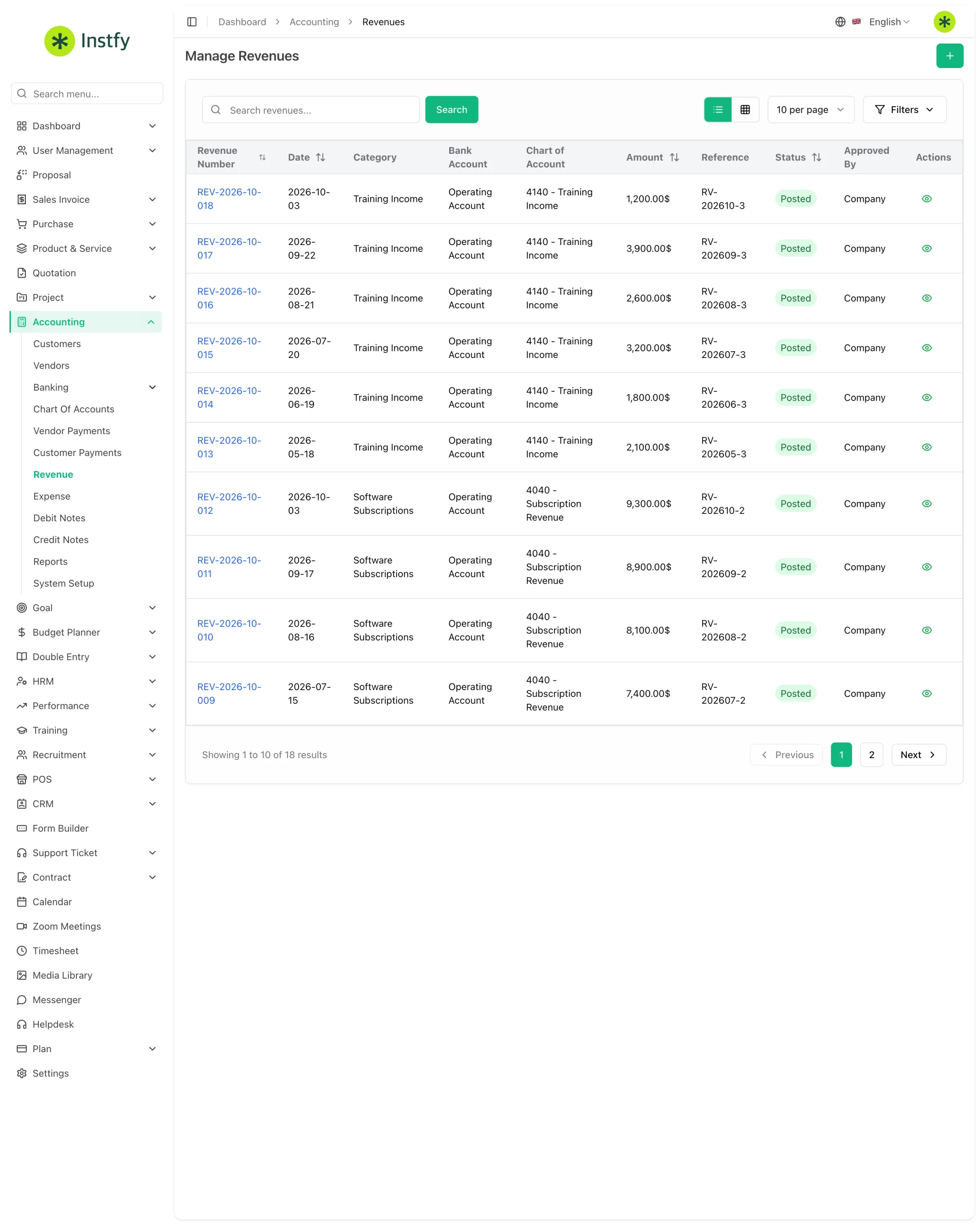
Use Revenue and Expense for amounts that do not come from invoices, such as interest income, bank fees, rent, or utility bills.
Menu path: Accounting > Revenue and Accounting > Expense
- Open Accounting > Revenue (or Expense) and click Create.
- Enter the date, amount, bank account, and classification of the entry.
- Link the customer or vendor, if any, and add a reference or description.
- Click Save. The account balance is updated.
Do not record a sales invoice payment in Revenue: use Customer Payments. Doing both duplicates the revenue in reports.
Issue debit and credit notes
Menu path: Accounting > Debit Notes and Accounting > Credit Notes
- Use Credit Notes when the company owes an amount to the customer, for example after a sales return.
- Use Debit Notes when the vendor owes an amount to the company, for example after a purchase return.
- Click Create, select the customer or vendor and the related document, enter the amount, and click Save.
View reports and the Account Dashboard
Menu path: Accounting > Reports and Dashboard > Account Dashboard
- Open Dashboard > Account Dashboard for a quick view of balances, revenue, and expenses.
- For details, open Accounting > Reports and choose the report you want.
- Set the period and the available filters and generate the report.
- For complete accounting statements, use [Double entry](#/double-entry).
Complete flow
Sales: Proposal or Quotation > Sales invoice > Customer Payments > Reports
Purchasing: Purchase invoice > Vendor Payments > Reports
Planning: Budget Planner and Goal compare Accounting actuals with the plan
Accounting receives documents from Sales invoices and Purchasing, records the activity in the bank accounts, and feeds Double entry, the Budget planner, and Goals.
Frequently asked questions
What is the difference between Revenue and Customer Payments?
Customer Payments records the payment of a sales invoice and reduces its open balance. Revenue records income that does not come from invoices. Using both for the same amount duplicates the revenue.
Where do I set up bank accounts?
In the Accounting > Banking submenu, which holds the bank accounts and the transfers between accounts.
Where is the chart of accounts?
In Accounting > Chart Of Accounts. Account types and other module settings are in Accounting > System Setup.
When do I use a credit note or a debit note?
A credit note (Credit Notes) when your company owes an amount to the customer. A debit note (Debit Notes) when the vendor owes an amount to your company. Both usually accompany returns.
Does ERP Instfy replace my accountant?
No. ERP Instfy organizes the entries and generates reports, but tax obligations and accounting decisions remain the responsibility of your accountant.
Next steps
With day-to-day finance in order, go deeper into analysis and planning.