
Users and roles
Create roles with permissions by module, invite users, reset passwords and deactivate access in User Management.
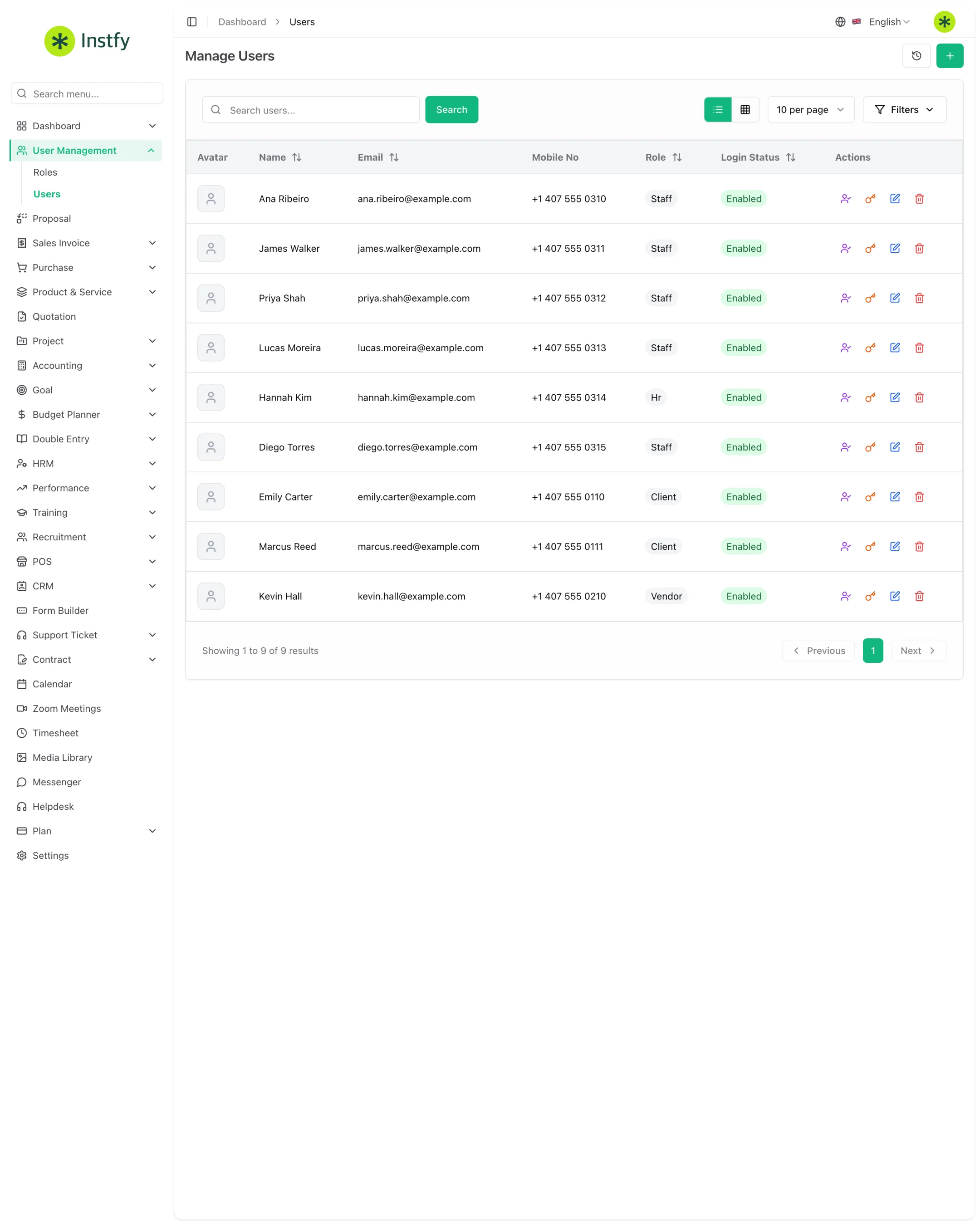
In User Management, the company administrator brings the team into the system securely. First you create the roles, which define what each job can do, and then you add the users, assigning a role to each one.
Before you start
- Log in with the Company user.
- Read Roles and permissions to understand the user types and the access logic.
- Set up email sending in Settings > Email Settings, so that alerts and password recovery work. See Integrations.
Create a role
Create one role per job so you do not have to configure permissions person by person.
Menu path: User Management > Roles
- Open User Management > Roles.
- Click Create or +.
- Give the role a clear name, such as Finance, Sales or HR.
- Check the permissions for each module the role should access, for example view, create, edit and delete.
- Click Save. The role appears in the list and can now be assigned to users.
Start with few permissions and expand when someone needs more. It is safer than granting everything and trying to restrict it later.
Edit a role's permissions
- Open User Management > Roles.
- Click Edit on the role you want.
- Check or uncheck the permissions.
- Click Save. The change applies to every user with that role.
Invite a user
Menu path: User Management > Users
- Open User Management > Users.
- Click Create or +.
- Fill in the user's details, such as name and email, and set the login password when the form asks for it.
- Choose the user's role.
- Click Save. Give the person the address https://erp.instfy.com/login and the email you registered.
Do not send passwords through insecure channels. It is better for the person to set their own password using the forgot password option on the login screen.
The number of users may depend on your plan. If you cannot create more users, see Plan and subscription.
Reset a user's password
Use this when a team member forgot their password and cannot recover it by email.
- Open User Management > Users.
- Find the user in the list.
- Open the user's actions and choose the reset password option, when available, or click Edit.
- Set the new password and click Save.
- Let the person know and ask them to change the password at their next login.
Deactivate or delete a user
When someone leaves the company, block their access the same day.
- Open User Management > Users and find the user.
- If the screen offers an option to deactivate or block login, use it. That way the history is preserved.
- If there is no such option, change the user's password or switch their role to one with no permissions.
- Use Delete only for users created by mistake and with no entries.
Prefer deactivating over deleting. Records created by the person stay linked to their name, which helps with audits.
Frequently asked questions
Can I give the same role to several people?
Yes. That is the recommended use: create one role per job and assign it to everyone who performs that function.
The user does not see a module they should see. What should I do?
Check that their role has permission for that module in User Management > Roles and that the module is part of your plan. Then ask the person to log out and back in.
Is there a user limit?
The limit depends on the plan you subscribed to. See the details in Plan > Setup Subscription Plan and in Plan and subscription.
How do I know who recorded each entry?
Give each person an individual login and do not share users. That way records are associated with whoever created them.
Next steps
With your team added, start the master records and connect the integrations.