
Products and services
Set up products and services once, with price, tax, category, and unit, and reuse them in proposals, invoices, purchases, and the POS.
The Product & Service module is your company's central catalog. Everything you sell or buy needs to be here: physical items, which move inventory, and services, which do not. This catalog feeds Proposals, Quotations, Sales invoices, Purchasing, and the POS. It is worth investing time in it right from the start.
Before you start
Item setup depends on three supporting tables, found in Product & Service > System Setup:
| Supporting table | What it is for |
|---|---|
| Categories | Group items and organize reports |
| Units | Define how the item is measured (unit, hour, kg, box) |
| Taxes | Rates applied automatically on documents |
It also helps to have warehouses created in Purchase > Warehouses if you track inventory. See Purchasing and inventory.
Product or service: which to choose
| Type | When to use | Inventory |
|---|---|---|
| Product | Physical goods you buy, store, and sell | Tracked by warehouse |
| Service | Labor, technical hours, monthly fees, consulting | Does not move inventory |
When in doubt, ask: "does this take up space on a shelf?". If yes, it is a product. If not, it is a service.
Set up categories, units, and taxes
Do this before your first item. That way the item form fields already have options.
Menu path: Product & Service > System Setup
- Open Product & Service > System Setup. The screen opens on categories, with the other settings in tabs or side links.
- Under categories, click Create (or the + icon), enter the name (e.g., "Electronics", "Technical services"), and click Save.
- Under units, add the measures you use, such as "Unit", "Hour", and "Kg".
- Under taxes, add each rate with a name and percentage.
- Go back to items: categories, units, and taxes now appear as options.
Confirm the tax rates with your accountant. ERP Instfy applies the percentage you set up, but deciding which tax applies to each item is a tax decision for your company.
Create an item
Menu path: Product & Service > Items
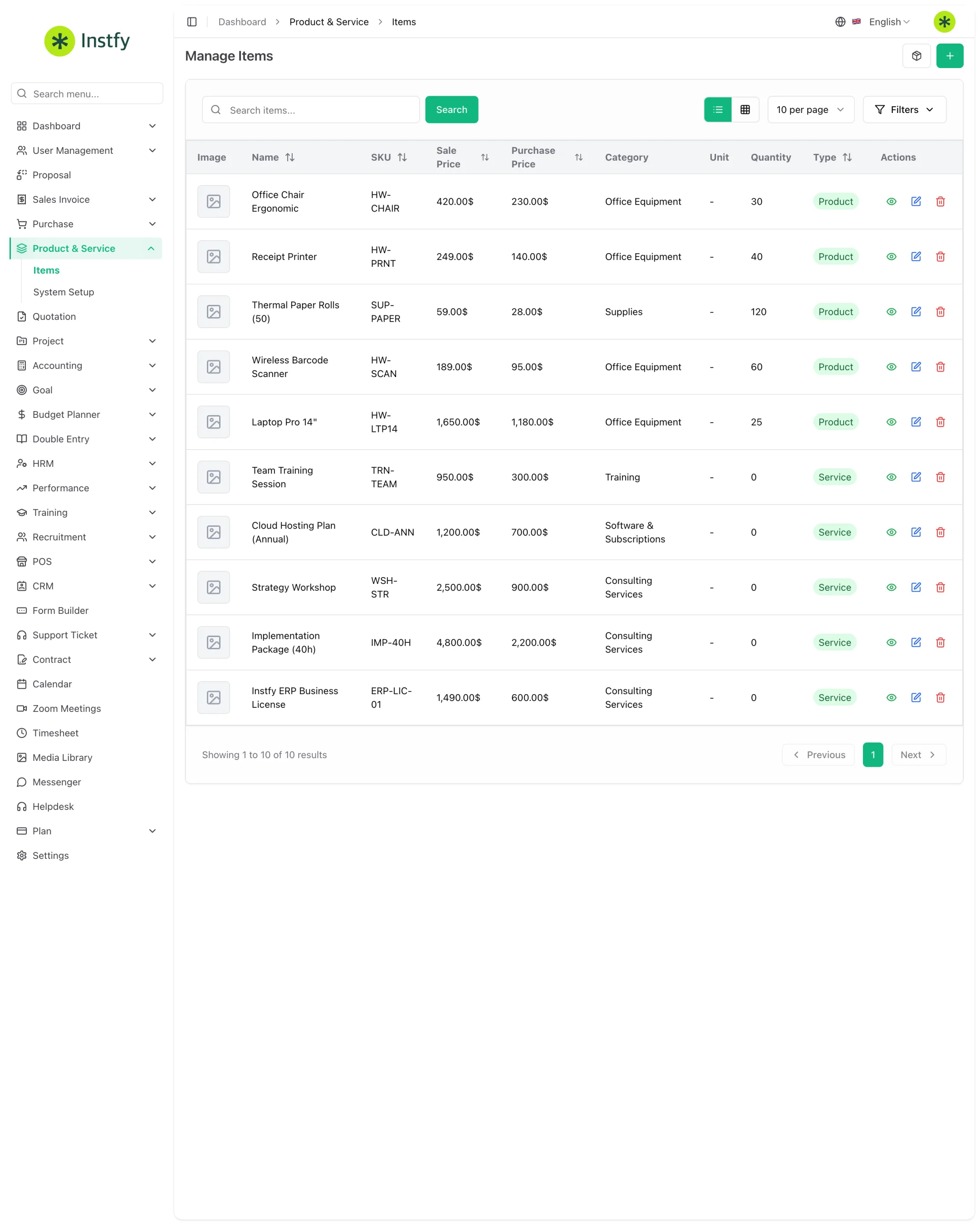
- Open Product & Service > Items.
- Click Create (or the + icon).
- Enter the item name and a code (SKU), if you use one.
- Choose the type: product or service.
- Fill in the sale and purchase prices.
- Select the category, unit, and tax.
- If you like, add a description and an image.
- Click Save. The item appears in the list and can be used in all documents right away.
Standardize names and codes from the very first item (e.g., "TSH-001 White T-shirt S"). Search, the POS, and reports become much faster.
Edit an item's price or tax
When the price changes, update the record: the next documents will go out with the new amount.
Menu path: Product & Service > Items
- Open Product & Service > Items and find the item.
- Click edit (pencil icon).
- Change the price, tax, or other details.
- Click Save.
Documents already issued keep the amounts from that time. The change applies to proposals, quotations, invoices, and sales created afterward.
Check a product's inventory
Product inventory is built from purchases, sales, returns, and transfers, separated by warehouse.
Menu path: Product & Service > Items and Purchase > Warehouses
- Open Product & Service > Items to see the items and the quantity information shown in the list.
- For the balance by location, open Purchase > Warehouses and look up the warehouse you want.
- If stock is short, record the incoming stock with a purchase invoice or move it from another warehouse with a transfer.
Complete flow
System Setup > Item > Purchase (stock into the warehouse) > Sale (proposal, quotation, invoice, or POS) > Reports
- Set up categories, units, and taxes in System Setup.
- Create the item in Items.
- Products enter inventory through a purchase invoice.
- The item is sold through Proposals, Quotations, Sales invoices, or the POS.
- The amounts reach the Accounting reports.
Frequently asked questions
Where do I set up categories, units, and taxes?
In Product & Service > System Setup. Set up these tables before your items, so the item form fields already have options.
Do services track inventory?
No. Only product-type items move inventory, separated by warehouse. Services go into sales and purchase documents without affecting quantities.
If I change an item's price, do old invoices change?
No. Documents already issued keep their original amounts. The new price applies to documents created after the change.
Why does the item not appear in the POS?
The POS shows products with stock in the selected warehouse. Check that the item is a product type and that there is a balance in the warehouse chosen in POS > Add POS.
Do I need to set up the same item separately for purchasing and for sales?
No. A single record holds both the sale price and the purchase price and is used in both sales invoices and purchase invoices.
Next steps
With your catalog ready, stock your inventory and start selling.