
Integrations
Connect ERP Instfy to email, Slack, Twilio (SMS), Zoom, Google Calendar and Webhook: what each one is for, what you need and how to test it.
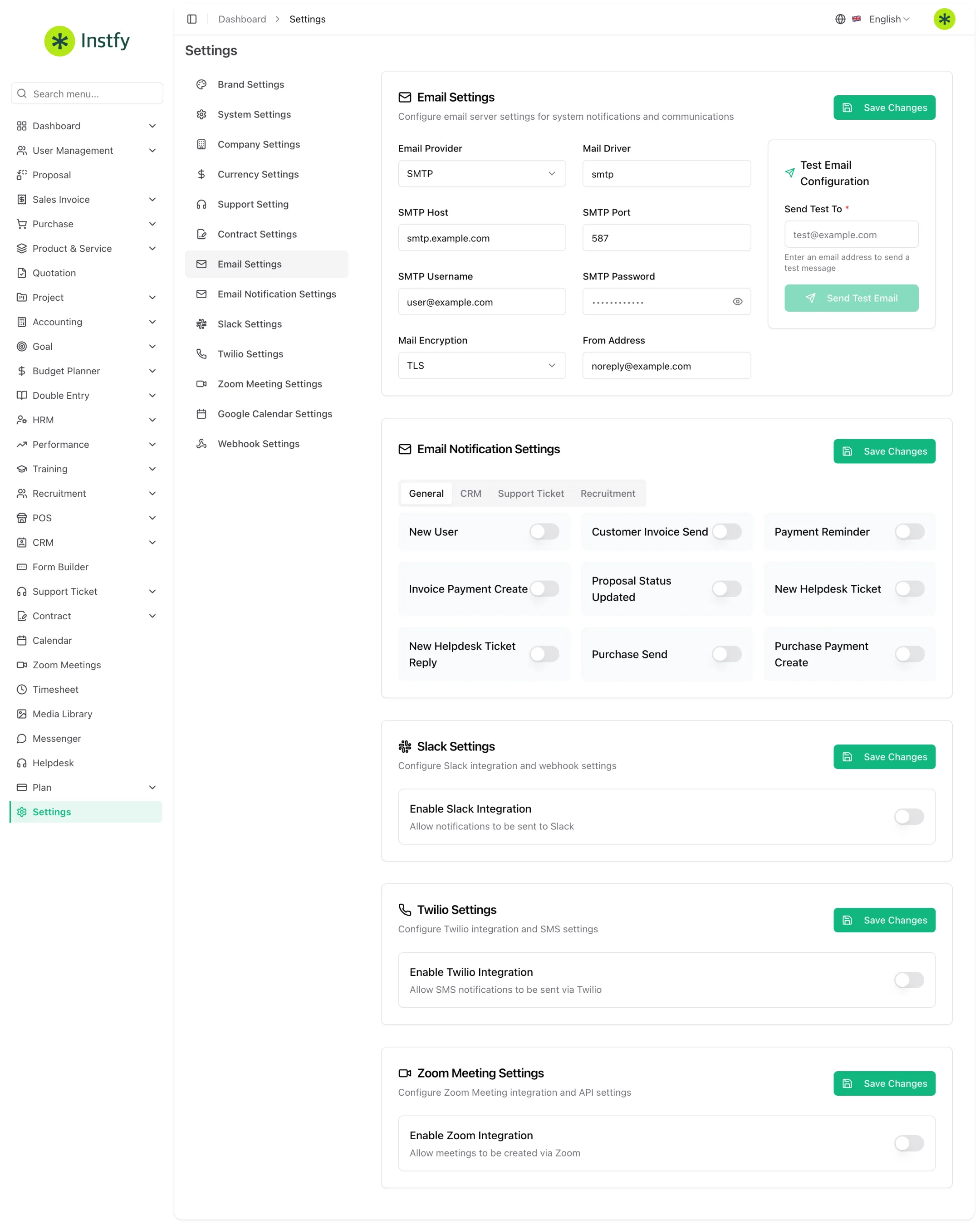
Integrations carry information from ERP Instfy to the tools your team already uses: automatic emails, Slack alerts, SMS, Zoom meetings, Google Calendar events and sending data to other systems. All of them are set up by the Company user on the Settings screen.
Before you start
- Log in with the Company user.
- Have an active account with the service you will connect and access to its credentials (keys, tokens or server details).
- Finish the basic company settings. See Company settings.
Integration credentials give access to external accounts. Store them carefully, do not share them by chat or email and change them if someone who had access leaves the company.
Menu path: Settings, tab for the integration you want
Overview
| Integration | Tab in Settings | What it is for | What you need |
|---|---|---|---|
| Email Settings | Sending system emails | Your provider's outgoing server (SMTP) details | |
| Email notifications | Email Notification Settings | Choosing which events trigger an email | Email already set up |
| Slack | Slack Settings | Receiving alerts in a Slack channel | A Slack workspace and access to create the connection |
| Twilio | Twilio Settings | Sending SMS | A Twilio account with a number and credentials |
| Zoom | Zoom Meeting Settings | Creating meetings from the ERP | A Zoom account and app credentials |
| Google Calendar | Google Calendar Settings | Sending events to Google Calendar | A Google account and project credentials |
| Webhook | Webhook Settings | Sending events to other systems | A URL that receives the calls |
Email (Email Settings and Email Notification Settings)
Email is the most important integration: without it, password recovery, sending documents and automatic alerts may not work.
- Ask your email provider for the outgoing (SMTP) details: server, port, encryption type, username and password.
- Open Settings > Email Settings and fill in the fields with those details and the sender.
- Click Save Changes.
- Use the test email option, if available, or trigger a password recovery for a test user.
- Open Settings > Email Notification Settings, turn on the events you want and click Save Changes.
Use an address on your company's domain as the sender. Emails sent from your own domain are less likely to land in spam.
Slack (Slack Settings)
Sends alerts about ERP events to a Slack channel, so the team can follow along without opening the system.
- In Slack, create the connection for the channel that will receive the alerts, following Slack's own instructions, and copy the connection detail it generates.
- Open Settings > Slack Settings and paste the information into the indicated fields.
- Choose the events that should trigger an alert, if the screen offers that option.
- Click Save Changes.
- Test it: create a record that triggers an alert (for example, a lead or an invoice) and check that the message reached the channel.
Twilio for SMS (Twilio Settings)
Sends SMS messages based on system events.
- In the Twilio console, copy the account credentials and the number that will send the messages.
- Open Settings > Twilio Settings and fill in the fields with those details.
- Choose the events that trigger an SMS, if the screen offers that option.
- Click Save Changes.
- Test it with an event that sends an SMS to your own number.
SMS sending is billed by Twilio, to your Twilio account, according to its terms.
Zoom (Zoom Meeting Settings)
Lets you create and track Zoom meetings from the Zoom Meetings item in the menu.
- In the Zoom developer area, create the app credentials for your account.
- Open Settings > Zoom Meeting Settings and fill in the fields with those credentials.
- Click Save Changes.
- Test it: open Zoom Meetings in the menu and create a meeting. See Zoom meetings.
Google Calendar (Google Calendar Settings)
Sends ERP events to Google Calendar, so appointments also appear on the team's calendar.
- In the Google console, create or use a project with access to the Google Calendar API and generate the required credentials.
- Open Settings > Google Calendar Settings and fill in the fields or upload the credentials file, as the screen requests.
- Click Save Changes.
- Test it: create an event in the ERP Calendar and check that it appears in Google Calendar. See Calendar.
Webhook (Webhook Settings)
Sends an automatic call to a URL whenever an event happens in the ERP. This is how you connect the ERP to other systems and to automation tools.
- Have a URL ready to receive the calls (from your own system or an automation tool).
- Open Settings > Webhook Settings and add a webhook: choose the event and enter the destination URL.
- Click Save or Save Changes.
- Test it: trigger the event in the ERP and check in the destination system that the call arrived.
For automation ideas, see Process automation.
Frequently asked questions
Do I need to set up every integration?
No. Only email is recommended for everyone, because password recovery and sending documents depend on it. The others are optional and should be turned on according to your company's routine.
The integration was saved, but nothing happens. What should I check?
Check the credentials, whether the account with the external service is active and whether the events you want are checked. Then trigger a test event. See Troubleshooting.
Do integrations cost anything?
Setup in ERP Instfy is part of the system, but some external services charge for usage on your own account, such as sending SMS through Twilio. Check each service's terms.
Can I connect the ERP to my own system?
Yes, through Webhook. You enter your system's URL and the ERP sends the data when the event happens.
Next steps
With the integrations on, review your plan and follow the dashboards.