
Time tracking (Timesheet)
Log the hours worked on each project and task and review the team's time by project and by person, without side spreadsheets.
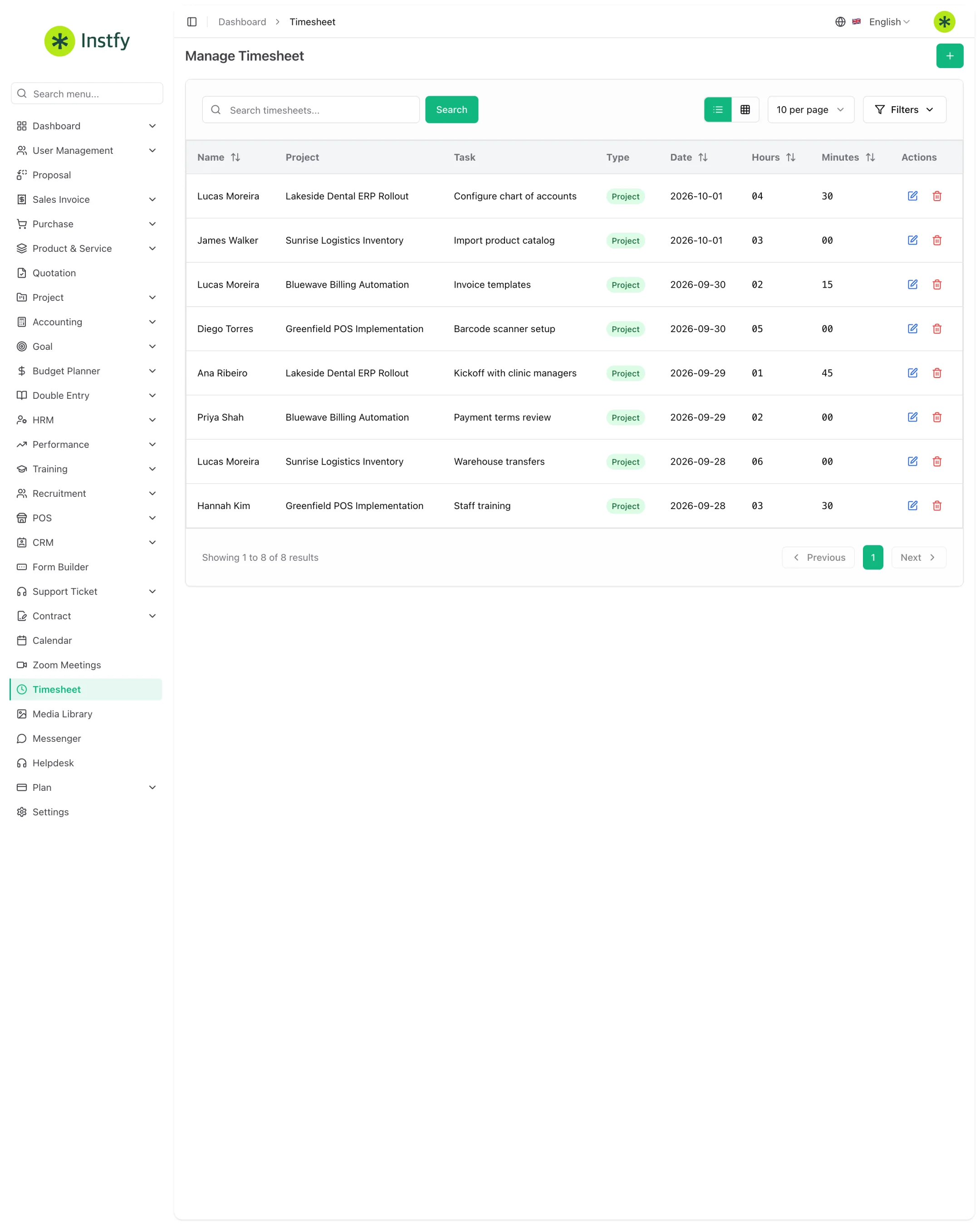
The Timesheet is where each person reports how much time they spent on each project. With hours logged, you know what each deliverable costs, who is overloaded, and which projects are taking more than planned. Use it daily on the project team and weekly in management.
Before you start
- The projects and tasks must already exist. Create them in Project > Projects, as described in Projects and tasks.
- The person logging hours must be a member of the project.
- The user's role must have permission for the Timesheet. Check it in Roles and permissions.
Log hours worked
All time spent on a project becomes an entry, so the team's effort is visible.
Menu path: Timesheet
- Open Timesheet in the side menu.
- Click the + button (Create).
- Select the project and the task you worked on.
- Enter the date, the number of hours, and, if there is a field for it, a short description of what was done.
- Click Save. The entry appears in the list and adds to the project total.
Log your hours on the same day you work them. Entries made from memory at the end of the month are almost always wrong.
Correct an entry
Picked the wrong project, date, or number of hours? Edit the record instead of creating a new one.
Menu path: Timesheet
- Open Timesheet and find the entry in the list.
- Click the record's edit action.
- Correct the necessary details.
- Click Save. The totals are updated.
Deleting an entry removes the hours from the project totals. Prefer editing when the error is only in the amount or date.
Review hours by project
Before billing a client or closing a project, check the total hours spent on it.
Menu path: Timesheet
- Open Timesheet.
- Use the available filters to limit the list to the project and period you want.
- Check the entries and the total hours shown.
- Compare with the plan and with progress in Project > Projects Report.
Review hours by person
The per-person view shows who is overloaded and who has spare capacity for new tasks.
Menu path: Timesheet
- Open Timesheet.
- Filter by the user and the period you want to review.
- Check whether the logged hours match the expected work schedule.
- Talk with the person about gaps or overages before closing the period.
Complete flow
- The project and tasks are created in Project > Projects.
- Each member logs their hours in Timesheet, ideally daily.
- The manager reviews by person every week and corrects what is needed.
- At close, the manager reviews by project and uses the total to bill or assess profitability.
Frequently asked questions
Can I log hours on a project I am not a member of?
Usually not. Logging depends on being linked to the project. Ask the project owner to add you as a member in Project > Projects.
Does the Timesheet calculate payroll automatically?
No. The Timesheet records project hours. Payroll is generated in the HRM module, in Payslip > Payroll, based on the salary defined in Set Salary. Use the hours as support when checking it. See HR, attendance, leave, and payroll.
What is the difference between the Timesheet and Attendance?
Attendance, in HRM > Attendance, records presence during the workday. The Timesheet records which project and task that time was spent on. The two complement each other.
How often should I review the hours?
A weekly review by person and a review by project at month-end close are usually enough. The sooner an error is found, the easier it is to fix.
Next steps
Use the hours to track your projects and check on the team's routine.