
Roles and permissions
Understand the ERP Instfy user types (company, employee, client and vendor), how roles work and how to grant the minimum access needed.
ERP Instfy is multi-user: each person logs in with their own login and sees only what their role allows. This page explains the access logic. For the step by step to create roles and users, see Users and roles.
Before you start
- You need to be logged in as Company, the account's main user.
- Make a list of the jobs in your company and what each one needs to do in the system.
User types
| Type | Who it is | What it accesses |
|---|---|---|
| Company | The account holder, usually the owner or the manager who subscribed to the plan | All modules in the plan, settings, users, roles and subscription |
| Employee | Employees and team members added by the company | Only the modules and actions allowed in their role |
| Client | The company's customers, when given access | Information related to them, according to the role's permissions |
| Vendor | The company's vendors, when given access | Information related to them, according to the role's permissions |
Customers and vendors are added in Accounting > Customers and Accounting > Vendors. Whether to give them access to the system is up to the company. If you are not sure, keep them as records only, without a login.
How roles work
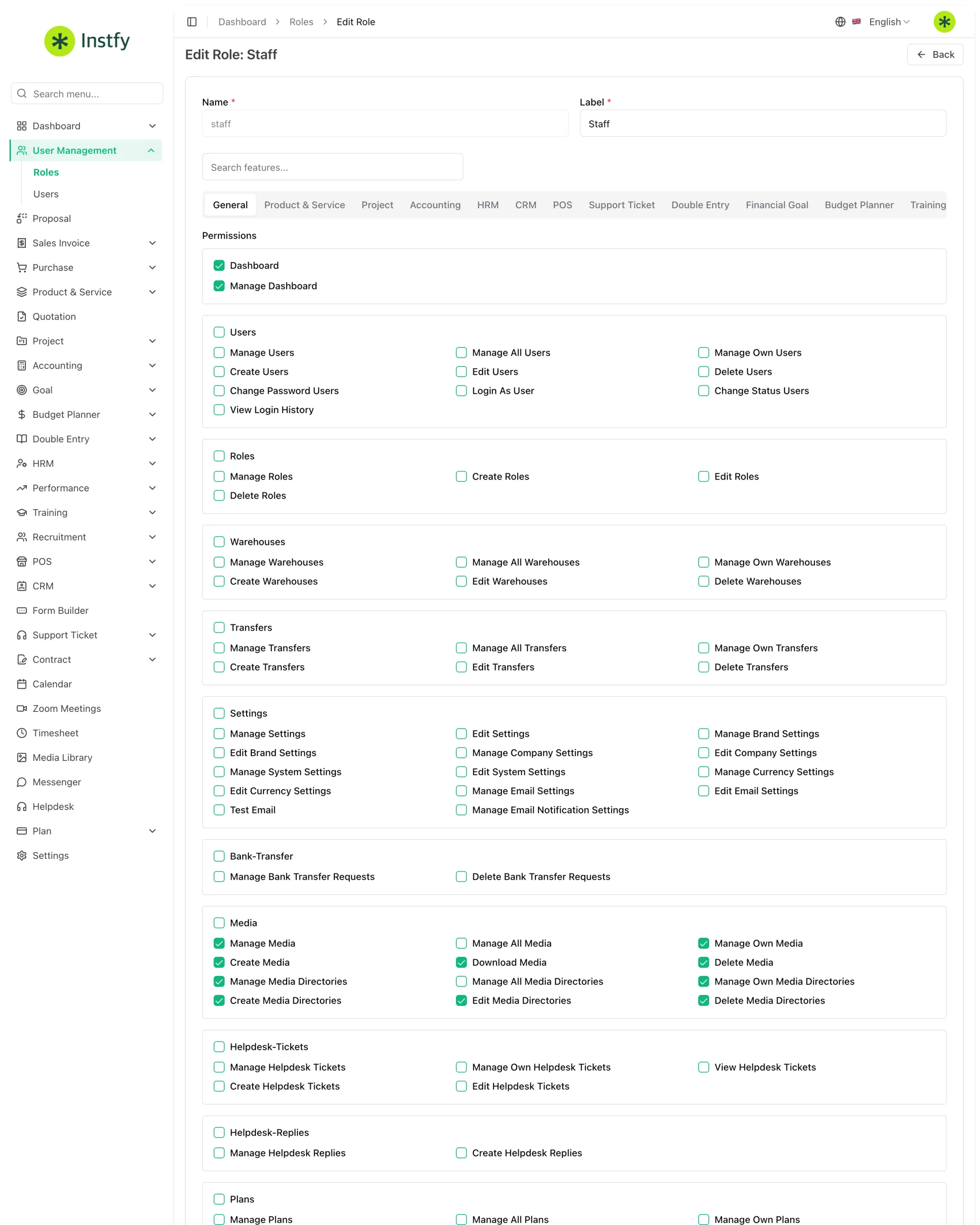
A role is a named set of permissions, such as Finance or Sales. Instead of configuring person by person, you configure the role once and assign it to several users.
- Permissions are organized by module (Accounting, HRM, CRM, Project and so on).
- Within each module, you check the allowed actions, such as view, create, edit and delete.
- The user's sidebar shows only the modules they have permission for.
- When you change a role, the change applies to every user with that role.
Menu path: User Management > Roles
Sample roles by job
Use the table as a starting point and adjust it to your reality.
| Role | Suggested modules |
|---|---|
| Finance | Accounting, Double Entry, Budget Planner, Goal, Sales Invoice, Purchase |
| Sales | CRM, Proposal, Quotation, Sales Invoice, Product & Service (read only) |
| Purchasing and inventory | Purchase, Product & Service |
| HR | HRM, Performance, Training, Recruitment |
| Projects | Project, Timesheet, Calendar |
| Customer support | Support Ticket, Helpdesk, Messenger |
| Cashier | POS |
Least-privilege best practices
- Start with the minimum. Give people only what they need to do their job and expand when the need arises.
- Separate viewing from deleting. Many jobs need to look up data, few need to delete it.
- Protect sensitive areas. Payroll, settings, users and plan should be limited to a few people.
- One login per person. Do not share users: that way you know who made each entry.
- Review periodically. When someone changes departments or leaves the company, adjust their role or deactivate the user.
The Company user has full access, including settings and subscription. Do not use this login for the team's daily work. Create Employee users for each person.
Frequently asked questions
What is the difference between a user and a role?
The user is the person who logs in. The role is the set of permissions that defines what they can see and do. Each user is assigned a role, and the same role can be used by several people.
Can an employee see payroll?
Only if their role has permission for the HRM module. To protect salary data, grant the module only to the HR role or to authorized managers.
Do customers and vendors need a login?
Not necessarily. You can keep them as records only to create invoices and record purchases. Give them access only if it makes sense for your process.
I changed a role. Do I need to edit each user?
No. The role change applies to every user with that role. Ask the person to log out and back in if the menu does not update.
Next steps
With the logic clear, create the roles and invite your team.