
Projects and tasks
Create projects, invite your team, organize tasks on a board, log bugs, and track deadlines and results in one place.
The Project module brings together everything a piece of work with a scope and deadline needs: team, tasks, stages, bugs, and calendar. Use it for client deliverables, internal projects, implementations, and any request that needs an owner and a date. Overall tracking lives in the Project Dashboard and the Projects Report.
Before you start
- Add the people who will work on projects in Users and roles. Only existing users can be added as members.
- Check that each person's role has permission to view and edit projects in Roles and permissions.
- If the project is for a client, create the client first in Accounting > Customers. See Finance and accounting.
- Define the task stages in the module settings (task below). This ensures a standardized board across the whole company.
Set up task stages
Stages are the board's columns (for example: To do, In progress, In review, Done). Set them up once and every project uses the same flow.
Menu path: Project > System Setup
- Open Project > System Setup. The task stages screen opens.
- Click the + button (Create) to add a stage.
- Enter the stage name and, if available, the color that identifies it on the board.
- Click Save. Repeat for each stage in your flow.
- Adjust the order of the stages so they reflect the actual sequence of work, from first to last.
Keep the number of stages small, four to six. A board with many columns is hard to read, and tasks end up stalled halfway.
Create a project
Every piece of work with a scope and deadline starts as a project, so the team, tasks, and files are all in one place.
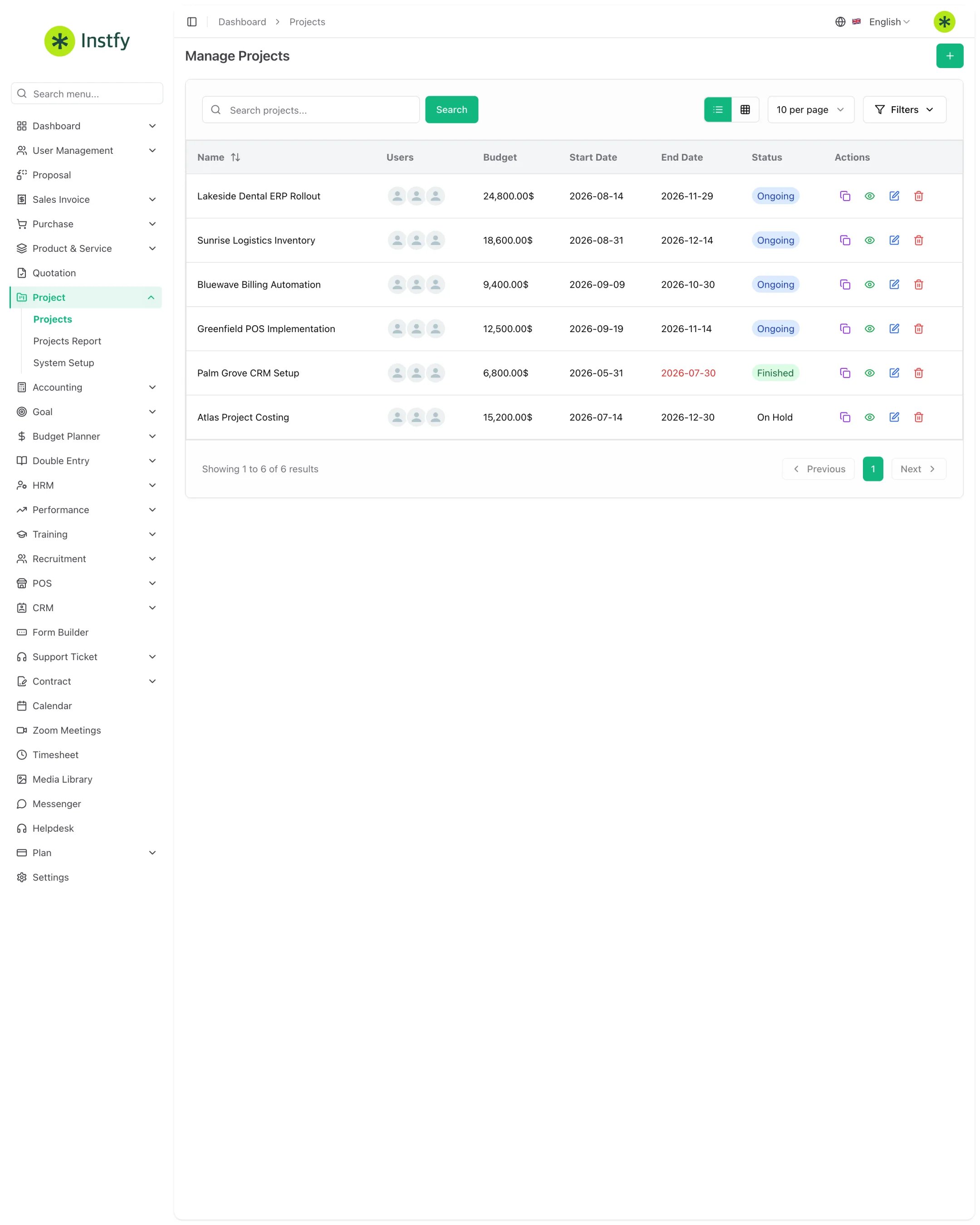
Menu path: Project > Projects
- Open Project > Projects.
- Click the + button (Create).
- Fill in the project details, such as name, description, start and end dates, and, when applicable, the client and budget.
- Click Save. The project appears in the list and can be opened to add members and tasks.
Add members to the project
Members are the people who see the project and can be assigned tasks. Add only those who actually take part.
Menu path: Project > Projects > (open the project)
- In Project > Projects, click the project to open its details.
- Find the members area and click the invite or add option.
- Select the users from the list.
- Confirm. The members now appear in the project and are available as task owners.
Create and assign tasks
A project moves forward through tasks. Break the work into clear pieces, each with an owner and a deadline.
Menu path: Project > Projects > (open the project) > Tasks
- Open the project and go to the tasks area.
- Click the + button (Create).
- Fill in the task title and description, and choose the owner from the members, the priority, and the dates.
- Click Save. The task enters the board in the indicated stage.
Work on the task board
The board shows which stage each task is in, so you can see project progress at a glance.
Menu path: Project > Projects > (open the project) > Tasks
- Open the project and switch to the task board view.
- Drag the task card from one column to another as the work moves forward.
- Click the card to open the task and adjust the owner, deadline, or description, or to add comments and attachments.
- When finished, move the card to the last stage. The project's progress is updated.
The column names come from Project > System Setup. If a stage is missing from the board, create it there and it appears in every project.
Log and track bugs
In software or implementation projects, bugs are kept separate from tasks. That way the team clearly sees what is new work and what is a fix.
Menu path: Project > Projects > (open the project) > Bugs
- Open the project and go to the bugs area.
- Click the + button (Create).
- Describe the problem, how to reproduce it, the priority, and who is responsible for the fix.
- Click Save. Follow the bug through the stages until it is resolved.
View the task calendar
The task calendar shows deadlines spread out over time. It is the best view for spotting overloaded weeks.
Menu path: Project > Projects > (open the project) > Task calendar
- Open the project and switch to the task calendar view.
- Move between periods to see tasks by date.
- Click a task to open its details and adjust the deadline if needed.
Track results in the report and dashboard
The report and dashboard show whether projects are on schedule and where the bottleneck is.
Menu path: Project > Projects Report and Dashboard > Project Dashboard
- Open Project > Projects Report to see the status of each project, such as progress, tasks, and deadlines.
- Click a project in the report to see details by member and by stage.
- Open Dashboard > Project Dashboard for an overview of all projects.
- Reassign tasks or revise deadlines where progress has stalled.
Complete flow
- Set up the stages in Project > System Setup.
- Create the project in Project > Projects and add the members.
- Create the tasks and assign owners and deadlines.
- Move tasks on the board and log bugs as they come up.
- Log hours in the Timesheet.
- Track progress in the Projects Report and the Project Dashboard.
Frequently asked questions
Who can see a project in ERP Instfy?
The project is visible to users added as members and to roles with project management permissions. To control who can access the module, adjust the role permissions in User Management > Roles.
Can I have different stages in each project?
Task stages are set up in Project > System Setup and serve as the company-wide default. The recommended approach is to design a generic flow that works for every project, rather than creating specific stages for each one.
What is the difference between a task and a bug?
A task is planned work that moves the project forward. A bug is a defect found in something already delivered or in testing. Keeping the two separate helps you measure how much effort goes into building and how much goes into fixing.
How do I record the hours spent on a task?
Hours are logged in the Timesheet module, linked to the project and the task. See the step-by-step guide in Time tracking.
Where can I see whether a project is behind schedule?
Use the Projects Report for the status of each project and the Project Dashboard for the consolidated view. The task calendar also helps you spot deadlines piling up in the same week.
Next steps
With the project running, log your team's hours and track the numbers on the dashboard.