
Dashboards by area
Get to know the 7 ERP Instfy dashboards (projects, accounts, HR, recruitment, POS, CRM and support) and use them in daily management.
Dashboards are the quick view of the business. Each one brings together indicators, charts and summary lists for an area, calculated automatically from what is recorded in the modules. You do not fill in a dashboard: you record invoices, tasks, leads and tickets, and the dashboard reflects the result.
Before you start
- Set the currency and general preferences in Settings. Dashboard amounts use these settings.
- Record some real entries in the modules. In a new account, dashboards start at zero.
- Each user sees only the dashboards for the areas allowed in their role. See Roles and permissions.
Menu path: Dashboard
The 7 dashboards
| Dashboard | Path | What it shows | Fed by |
|---|---|---|---|
| Project Dashboard | Dashboard > Project Dashboard | Status of projects and tasks | Projects, Hours |
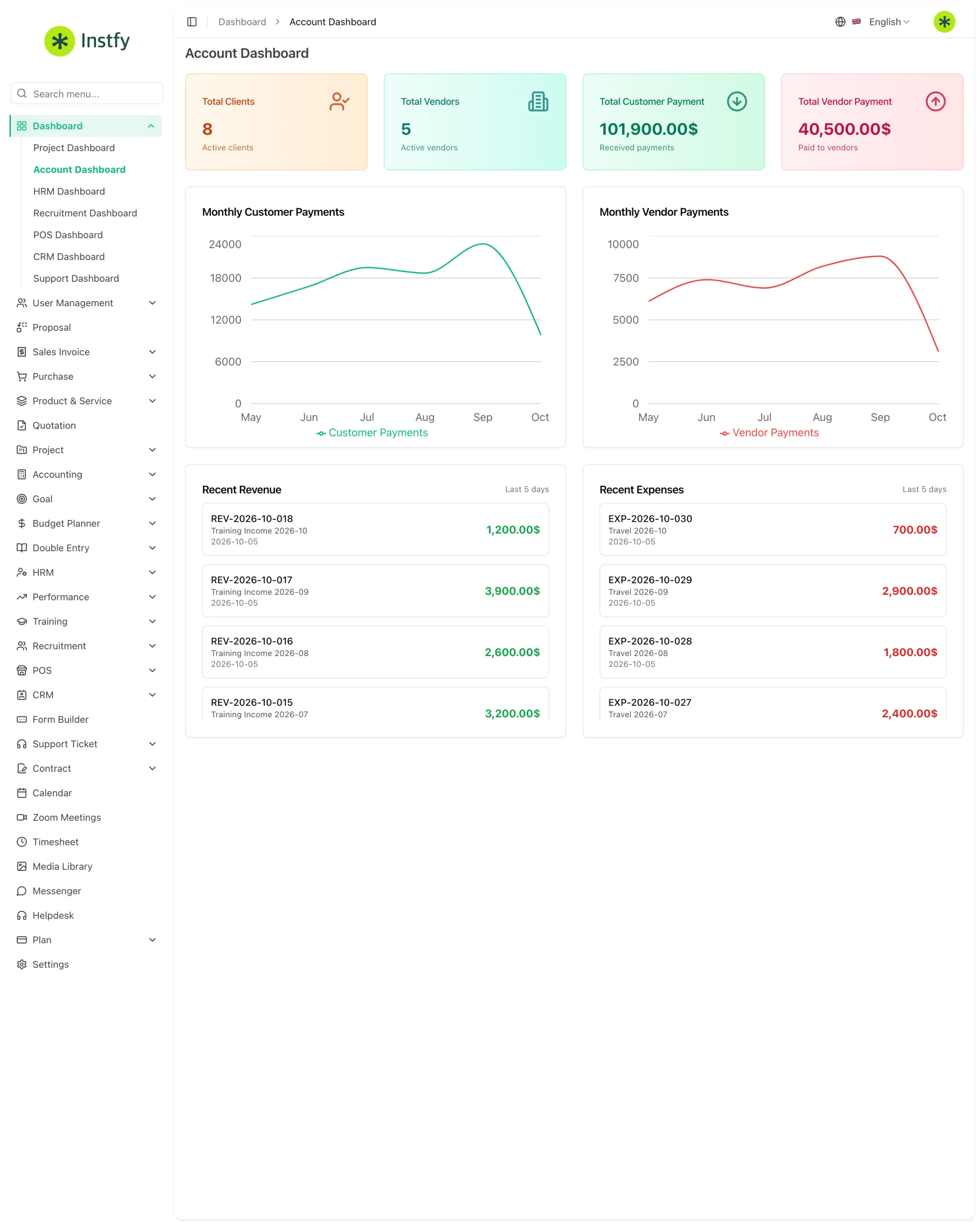
| Account Dashboard | Dashboard > Account Dashboard | Financial view: customers, vendors, payments received, payments made, revenue and expenses | Finance, Invoices, Purchases |
| HRM Dashboard | Dashboard > HRM Dashboard | People view: employees, attendance, leave and announcements | HR |
| Recruitment Dashboard | Dashboard > Recruitment Dashboard | Jobs, candidates and hiring process progress | Recruitment |
| POS Dashboard | Dashboard > POS Dashboard | Sales made at the POS | POS |
| CRM Dashboard | Dashboard > CRM Dashboard | Leads and deals in the pipeline | CRM |
| Support Dashboard | Dashboard > Support Dashboard | Tickets by status | Tickets |
The exact indicators on each dashboard may vary depending on the plan and active modules. Use the table as a guide to what to expect from each area.
Open a dashboard
- In the sidebar, click Dashboard.
- Choose the dashboard for the area you want, for example Account Dashboard.
- Read the indicators at the top and then the charts and lists.
- When a number catches your attention, open the source module to see the records.
Daily management routine
Agree with each manager on which dashboard they open every day and what to look for.
| Who | Dashboard | What to look for |
|---|---|---|
| Owner or director | Account Dashboard | Recent payments received and made, revenue and expenses |
| Finance | Account Dashboard | Money in and out for the period, to collect and pay on time |
| Sales | CRM Dashboard | New leads and deals stalled in the pipeline |
| Project manager | Project Dashboard | Overdue tasks and projects at risk |
| HR | HRM Dashboard and Recruitment Dashboard | Attendance, leave and open jobs |
| Store | POS Dashboard | The day's counter sales |
| Customer support | Support Dashboard | Open and pending tickets |
Use the dashboard as a starting point, not the end point. If a number looks wrong, go to the source module and check the entries: it is almost always a missing, duplicated or misdated record.
When the numbers do not match
- Check the period: the dashboard may show data for the current month or year.
- Check that the documents were saved and are not drafts, when the module has that status.
- Check the currency in Settings > Currency Settings.
- Compare with the module's reports, such as Accounting > Reports or the Double Entry reports.
See more cases in Troubleshooting.
Frequently asked questions
Why is my dashboard empty?
Dashboards show the data recorded in the modules. If there are no invoices, tasks, leads or tickets yet, the indicators show as zero. Follow the Implementation roadmap to make your first entries.
Why don't I see all 7 dashboards?
You see only the dashboards for modules included in the plan and allowed in your role. Ask the administrator to review your role in User Management > Roles.
Do dashboards update on their own?
Yes. They are calculated from the records in the modules. Reload the page to see recent entries.
Which dashboard should the business owner follow?
The Account Dashboard, for financial health, combined with the dashboard for the area most important to the business, such as CRM for sales or Project for services.
Next steps
Dive deeper into the modules that feed the dashboards.