
First access and login
Log in to ERP Instfy, create your account, recover your password, change the language and get to know the dashboard that appears right after login.
This page is for your first contact with the system: whether you are the person in charge of a company that just subscribed or a team member who was given access. In a few minutes you will be inside the ERP, in the language you prefer.
Before you start
- Use an up-to-date browser (Chrome, Edge, Firefox or Safari).
- Have the email used for the subscription or the email your company administrator registered for you.
- If your company does not have an account yet, you will create it on the sign-up screen.
Create the company account
Use sign-up when your company does not yet have access to ERP Instfy.
Path: https://erp.instfy.com/register
- Open https://erp.instfy.com/register in your browser.
- Fill in the requested details, such as name, email and password.
- Confirm the sign-up. If the system asks for email verification, open the message you received and confirm the address.
- Log in and choose or confirm the plan. See Plan and subscription.
Team members do not need to sign up. They are given access by the company administrator in User Management > Users. See Users and roles.
Log in
Path: https://erp.instfy.com/login
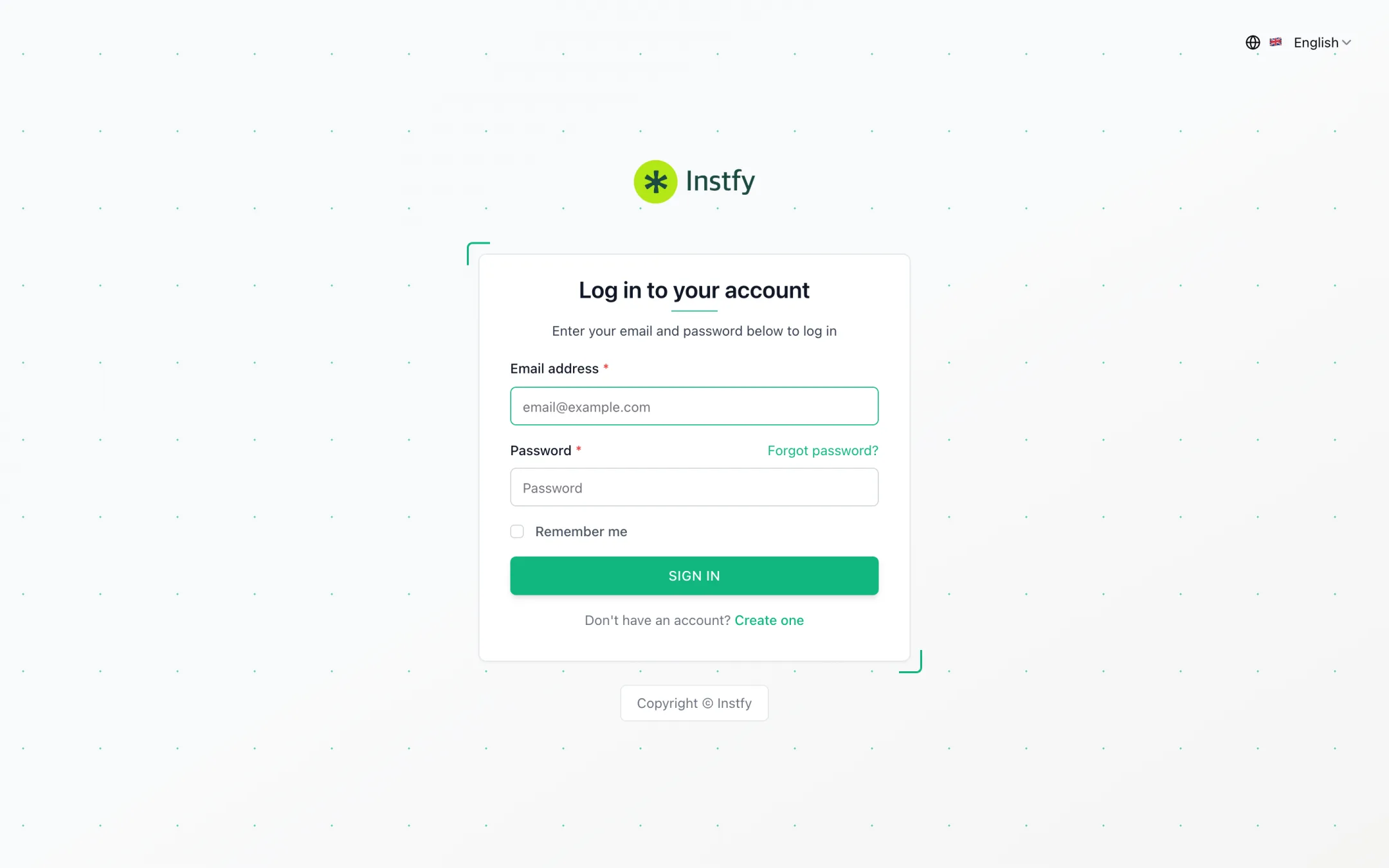
- Open https://erp.instfy.com/login.
- Enter your email and password.
- If you want to stay signed in on this device, check the remember me option, when available.
- Click the login button. You will be taken to your role's home dashboard.
On shared computers, do not check the remember me option and always log out when you are done.
Recover your password
- On the login screen, click the forgot password link.
- Enter your account email and confirm.
- Open the email you received and click the link to create a new password.
- Set the new password and go back to the login screen to sign in.
Didn't get the email? Check your spam folder. If your company uses its own email server, it needs to be set up in Settings > Email Settings. A team member can also ask the administrator to reset the password. See Troubleshooting.
Change the language
The ERP Instfy interface is in English by default. You can change it whenever you want.
- In the top bar, click the language selector (for example, English).
- Choose the language you want from the list.
- The interface reloads in the new language.
In this documentation, menu paths appear as they do in the English interface, for example Accounting > Customers. That way you can find the feature whatever language you choose.
The first dashboard
After login, you land on a dashboard in the Dashboard group. For the Company user, there are seven dashboards by area: Project, Account, HRM, Recruitment, POS, CRM and Support. They start empty and fill up as you record invoices, purchases, tasks and tickets. See Dashboards by area.
Log out
Click your name or avatar in the top right corner and choose the log out option.
Frequently asked questions
What is the address to log in to ERP Instfy?
The login page is at https://erp.instfy.com/login. New companies create their account at https://erp.instfy.com/register.
I am a team member. Do I need to create an account?
No. Your company administrator adds you in User Management > Users and gives you the login email. If you did not receive your details, talk to them.
How do I change the system language?
Click the language selector in the top bar, which shows the current language (for example, English), and choose the language you want.
Why is the dashboard empty?
Dashboards show data recorded in the modules. A new account has no invoices, purchases or tasks yet, so the numbers show as zero. Follow the Implementation roadmap.
I entered the wrong password several times. What should I do?
Use the forgot password option on the login screen to create a new one. If the problem continues, see Troubleshooting.
Next steps
With access working, get to know the screen and set up your company.