
Troubleshooting
Solve the most common ERP Instfy problems: login, emails, menu by permission, currency, reports and integrations, with cause and solution.
Something not working as expected? Before asking for help, look for the symptom on this page. Each problem includes the most likely cause and the steps to fix it. Most are solved in a few minutes, without contacting support.
Before you start
- Reload the page and try again. Many temporary glitches go away this way.
- Test in a private window or another browser to rule out cache and extensions.
- Write down what you were doing, the screen and the error message, if any.
Access
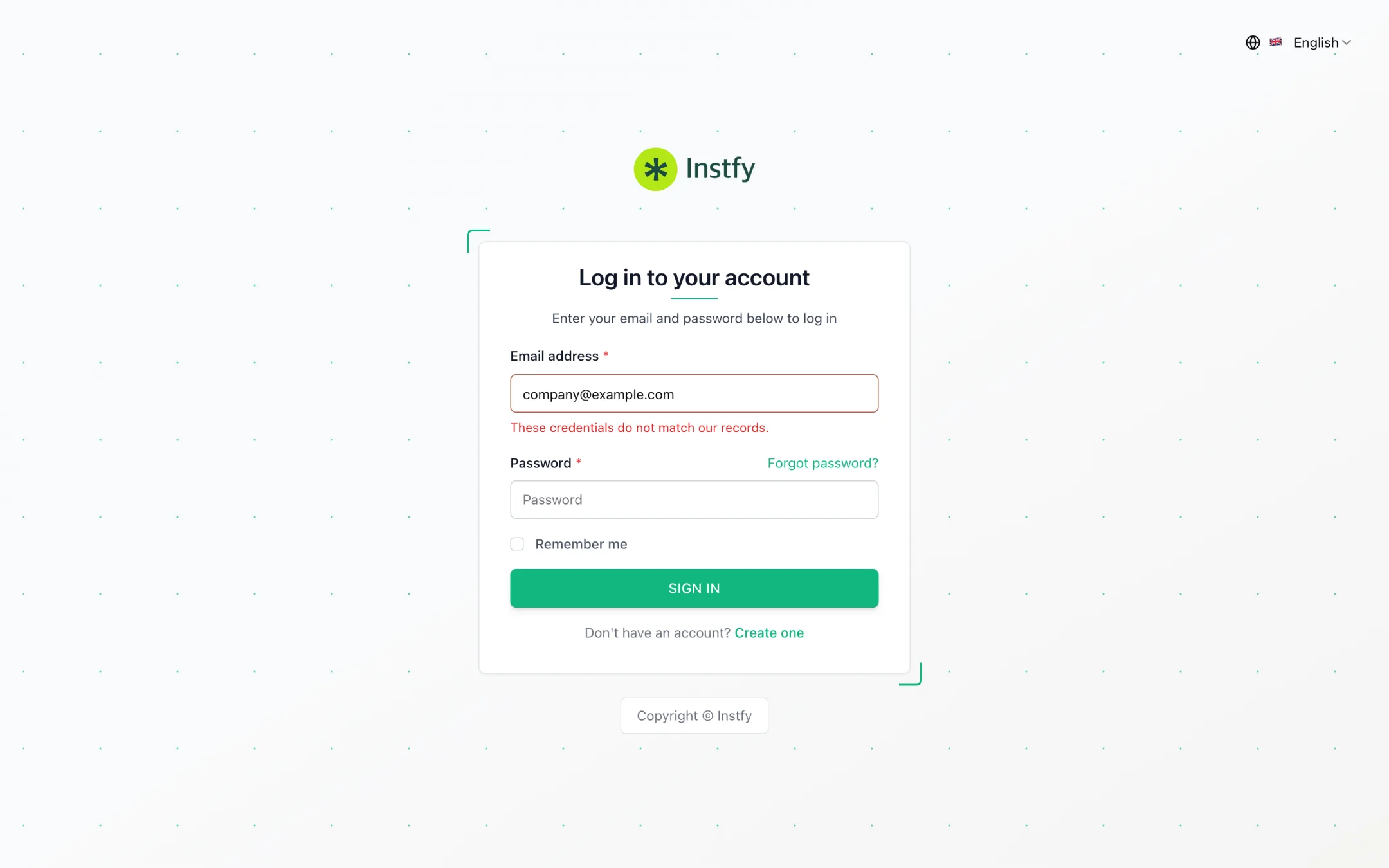
I can't log in to the system
Likely cause: incorrect email or password, wrong address or deactivated user.
- Confirm you are at https://erp.instfy.com/login.
- Type your email carefully, with no spaces at the beginning or end.
- Use the forgot password option to create a new password.
- If you are a team member, ask the administrator to check your record in User Management > Users.
I didn't receive the password recovery or notification email
Likely cause: the message went to spam or email sending is not set up.
- Check your spam, junk and promotions folders.
- Check that the email you typed is the same one on record.
- If you are the administrator, review Settings > Email Settings (server, port, username, password and sender) and send a test email.
- Check in Settings > Email Notification Settings that the event is turned on.
See Integrations.
The menu does not show a module I need
Likely cause: your role does not have permission for the module or the module is not part of the plan.
- Ask the administrator to open User Management > Roles and check your role's permissions.
- If the role is correct, the administrator checks the plan in Plan > Setup Subscription Plan.
- After any change, log out and back in to the system.
See Roles and permissions and Plan and subscription.
A button such as Create or Delete does not appear
Likely cause: the role allows viewing the module, but not creating, editing or deleting.
How to fix it: ask the administrator to check the required action in your role in User Management > Roles. See Users and roles.
Setup
Amounts appear in the wrong currency
Likely cause: the currency was not set before entries were recorded or was changed afterwards.
- Open Settings > Currency Settings.
- Choose the correct currency and adjust the number format.
- Click Save Changes and reload the page.
- Review the documents recorded before the change and correct those that need it.
See Company settings.
The logo or company details do not appear on documents
Likely cause: the tab was not saved or the browser is showing an old version.
How to fix it: check Settings > Brand Settings and Settings > Company Settings, click Save Changes in each tab and reload the page, clearing the cache if needed.
The interface is in English
Likely cause: the default interface language is English.
How to fix it: click the language selector in the top bar and choose the language you want. See First access and login.
Sales and finance
The invoice does not appear in the report or on the dashboard
Likely cause: period filter, invoice not yet finalized or a date different from the one expected.
- Check the period and filters on the report or dashboard.
- Open the invoice in Sales Invoice and check its date and status.
- Check that the invoice was saved and sent or finalized, according to the screen's workflow.
- Compare with Accounting > Reports and the Double Entry reports.
See Sales invoices and Double entry and reports.
The bank balance does not match the statement
Likely cause: wrong opening balance, duplicated entry or payment recorded in the wrong account.
- Open Accounting > Banking and check the account's opening balance.
- Compare, one by one, the payments received, payments made, revenue and expenses for the period with the statement.
- Correct duplicated entries or those in the wrong account.
I can't find a category or option in the form list
Likely cause: the supporting record has not been created yet.
How to fix it: add the option in the module's System Setup item, for example Product & Service > System Setup for product categories or Accounting > System Setup for account types. See Getting to know the interface.
Integrations and plan
The integration does not send anything
Likely cause: incorrect credentials, inactive external account or event not turned on.
- Open the integration's tab in Settings and check each credential.
- Check that the account with the external service (Slack, Twilio, Zoom, Google) is active and has permission.
- Confirm the event you want is turned on and click Save Changes.
- Trigger a test event and check the result in the external service.
See Integrations.
A module disappeared after renewing or changing plans
Likely cause: the new plan does not include the module or the payment has not been confirmed yet.
How to fix it: check the plan in Plan > Setup Subscription Plan, the payment status in Plan > Orders and, if you paid by bank transfer, in Plan > Bank Transfer Requests. See Plan and subscription.
How to ask for help
If the problem continues, open a ticket with the Instfy team:
- ERP Helpdesk: open a ticket through the Helpdesk item in the sidebar. This is the preferred path for technical problems, because it keeps a history and lets you attach screenshots. See Helpdesk.
- Email: relationship@instfy.com.
- Phone: +1 (689) 305-0884.
Include in the ticket the company name, the user's email, the module and screen, what you did, what you expected and screenshots of the error message. See Support and contact.
Never send passwords in a ticket. The support team does not need your password to help.
Frequently asked questions
What is the first step when something does not work?
Reload the page and test in a private window. If the problem continues, look for the symptom on this page and follow the steps shown.
Is the problem just mine or the whole company's?
Ask another user to test the same screen. If only you have the problem, it is almost always a role permission or browser cache issue.
Who can fix permissions and settings?
The Company user, who manages User Management and Settings. Team members should ask that user.
How do I contact Instfy support?
Open a ticket through the ERP Helpdesk or write to relationship@instfy.com. We also take calls at +1 (689) 305-0884. Describe the problem with screenshots and the steps you have already tried.
Next steps
Check the quick answers and the glossary to better understand the system.