
HR, attendance, leave, and payroll (HRM)
Build your company structure, add employees, track attendance and leave, run payroll, and record each employee's entire work history.
The HRM module covers the complete employee journey: from organizational structure to separation. This page follows that order: structure, employees, attendance and leave, payroll, employee lifecycle, and separation. The consolidated view is in Dashboard > HRM Dashboard.
Before you start
- Add the users who will have access to the system in Users and roles and define what each role can see in Roles and permissions.
- Review the currency and company details in Company settings.
- Have your list of branches, departments, and job titles on hand. They feed the lists on the employee form.
1. Structure: branches, departments, and job titles
The organizational structure comes first, because every employee is linked to a branch, a department, and a job title.
Menu path: HRM > System Setup
- Open HRM > System Setup. The Branches screen opens.
- Click the + button (Create), enter the branch name, and click Save.
- In the setup's internal menu, open departments and add each one, linked to its branch.
- Next, open job titles and add each one, linked to its department.
- Review the other lists available in the setup, which feed other records in the module.
Even with a single location, create a branch (for example, "Headquarters"). It is the basis for departments and job titles.
2. Add employees
The employee is the foundation of HR: without employees there is no attendance, leave, or payroll.
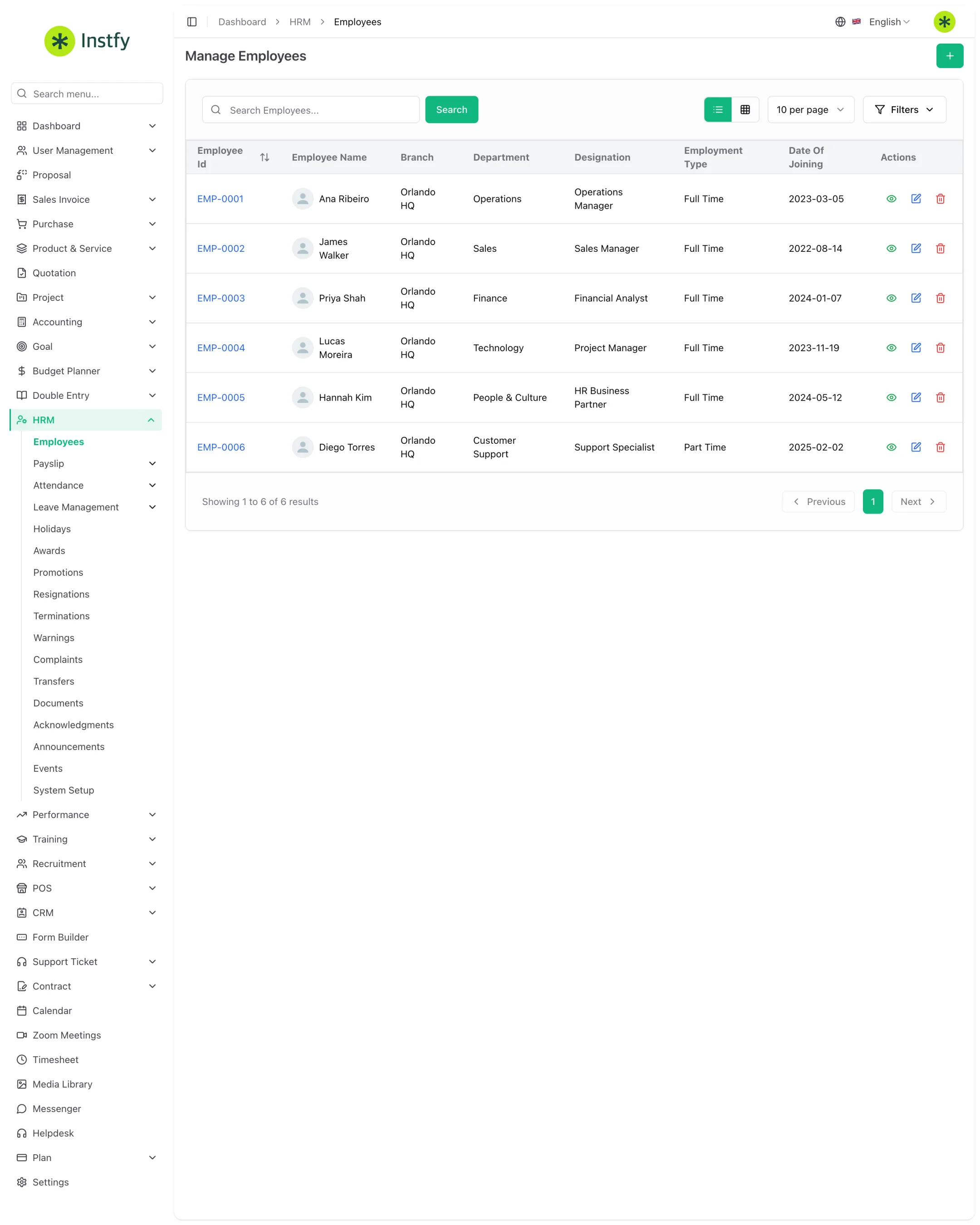
Menu path: HRM > Employees
- Open HRM > Employees.
- Click the + button (Create).
- Fill in the personal and contact details, and select the branch, department, and job title.
- Enter the hiring details and, if you like, attach documents and bank details.
- Click Save. The employee appears in the list and becomes available throughout the module.
If the branch, department, or job title lists are empty, go back to step 1 and add them first.
3. Attendance: shifts and attendance records
Attendance tracking starts with shifts (work schedules) and continues with the daily attendance record.
Menu path: HRM > Attendance > Shifts and HRM > Attendance > Attendances
- Open HRM > Attendance > Shifts and add the company's shifts, with clock-in and clock-out times.
- Open HRM > Attendance > Attendances to view and record attendance.
- Click the + button (Create), select the employee and the date, and enter the times.
- Click Save. Use the list filters to review attendance by period or by person.
4. Vacation and leave
Leave covers vacation, sick leave, and days off. The flow has three parts: types, requests, and balance.
Menu path: HRM > Leave Management
- In Leave Management > Leave Types, add the company's leave types and the number of days for each.
- In Leave Management > Leave Applications, click + (Create) to record a request, with the employee, type, period, and reason.
- The manager opens the request in the list and approves or rejects it.
- In Leave Management > Leave Balance, check how many days each employee has used and how many remain.
Also add holidays in HRM > Holidays, so the team knows which days are not working days.
5. Payroll
Payroll uses the salary defined for each employee and generates the payslips for the period.
Menu path: HRM > Payslip > Set Salary and HRM > Payslip > Payroll
- Open Payslip > Set Salary and, for each employee, set the salary and any applicable additional or deduction components.
- Open Payslip > Payroll and create the payroll for the period you want.
- Review the calculated amounts for each employee.
- Generate the payslips and make them available to employees.
Close out attendance and leave for the period before generating payroll. Adjusting afterward creates rework. ERP Instfy supports the calculation, but payroll taxes and legal obligations should be validated with your accountant.
6. Employee lifecycle
Record career events to keep a reliable history for each person.
Menu path: HRM (items below)
| Menu item | What it is for |
|---|---|
| Awards | Recognition and awards granted |
| Promotions | Moves up to a higher position |
| Transfers | Change of branch or department |
| Warnings | Formal warnings |
| Complaints | Complaints filed by or against employees |
| Documents | Company documents and policies |
| Acknowledgments | Confirmation that the employee has read a document |
| Announcements | Notices to the team |
| Events | Internal events, such as celebrations and trainings |
- Open the item you want in the HRM menu.
- Click the + button (Create).
- Select the employee (or the audience, for announcements and events) and fill in the record details.
- Click Save. The record becomes part of the history.
7. Separation: resignations and terminations
Separation should also be recorded, whether it is initiated by the employee or by the company.
Menu path: HRM > Resignations and HRM > Terminations
- For an employee resignation, open HRM > Resignations and click + (Create).
- For a separation initiated by the company, open HRM > Terminations and click + (Create).
- Select the employee and enter the dates and the reason.
- Click Save. Then review the employee's leave balance and final payroll.
Complete flow
- Structure in HRM > System Setup: branches, departments, and job titles.
- Employees in HRM > Employees.
- Shifts and attendance in Attendance; types, requests, and balance in Leave Management; holidays in Holidays.
- Salaries in Set Salary and payroll in Payroll.
- Awards, promotions, transfers, announcements, and other records throughout the career.
- Separation in Resignations or Terminations.
- Overall tracking on the HRM Dashboard.
Frequently asked questions
Where do I start setting up HR?
Start with HRM > System Setup, adding branches, departments, and job titles. Then add the employees. Without this structure, the lists on the employee form are empty.
What is the difference between Leave Applications and Leave Balance?
Leave Applications are leave requests, which go through approval. Leave Balance shows each employee's remaining days, already accounting for what has been approved.
Does ERP Instfy calculate local payroll taxes and labor charges?
Payroll uses the salary and components you set up in Set Salary. Specific legal rules, such as employer taxes and filing obligations, should be checked with your accountant before payment.
What is the difference between Resignations and Terminations?
Resignations records a resignation submitted by the employee. Terminations records a separation initiated by the company.
Can employees see their own data?
Yes, when they have a user account in the system and their role allows it. Permissions are defined in User Management > Roles.
Next steps
With HR in place, move on to reviews, training, and hiring.