
Budget planner
Define periods, create the budget, allocate amounts by account, and track planned vs. actual in the ERP Instfy Budget Planner.
The Budget Planner turns the company's financial plan into numbers the system tracks. You define the period (for example, the fiscal year), create the budget, make the allocations of amounts, and, over time, use monitoring to compare what was planned with what actually happened in Accounting.
Before you start
- Chart of accounts organized in Accounting > Chart Of Accounts. Allocations use this structure. See Accounting.
- Entries up to date (invoices, payments, revenue, and expenses), so the actuals reflect reality.
- A numeric plan agreed on with the partners or the finance team: how much you expect to bill and spend in each area.
| Menu | Cycle stage |
|---|---|
| Budget Periods | 1. Define the period |
| Budget | 2. Create the budget |
| Budget Allocations | 3. Allocate the amounts |
| Budget Monitoring | 4. Compare planned vs. actual |
Create a budget period
The period sets the date range the budget covers, such as a year or a half-year.
Menu path: Budget Planner > Budget Periods
- Open Budget Planner > Budget Periods.
- Click Create (or the + icon).
- Enter a clear name (e.g., "Fiscal year 2027") and the start and end dates.
- Click Save. The period becomes available for new budgets.
Include the year in the period name. When there are several, it is easy to pick the right one in the next steps.
Create the budget
The budget is the document that brings together the financial targets for a period.
Menu path: Budget Planner > Budget
- Open Budget Planner > Budget.
- Click Create (or the + icon).
- Name the budget and select the period created in the previous step.
- Fill in the other requested details, such as the total planned amount, if the form asks for it.
- Click Save. The budget appears in the list with its status.
If your account uses a budget approval workflow, the status shows whether it is still a draft or has been approved. Review it with the finance lead before you start monitoring.
Allocate the amounts (Budget Allocations)
Allocations state how much of the budget goes to each account or area. They are the heart of planning.
Menu path: Budget Planner > Budget Allocations
- Open Budget Planner > Budget Allocations.
- Click Create (or the + icon).
- Select the budget and the account that will receive the allocation.
- Enter the planned amount for that account.
- Click Save and repeat for each relevant account.
Start with the accounts that weigh the most: payroll, rent, marketing, and main revenue lines. A budget with 10 well-thought-out lines is worth more than 80 lines of guesswork.
Track planned vs. actual (Budget Monitoring)
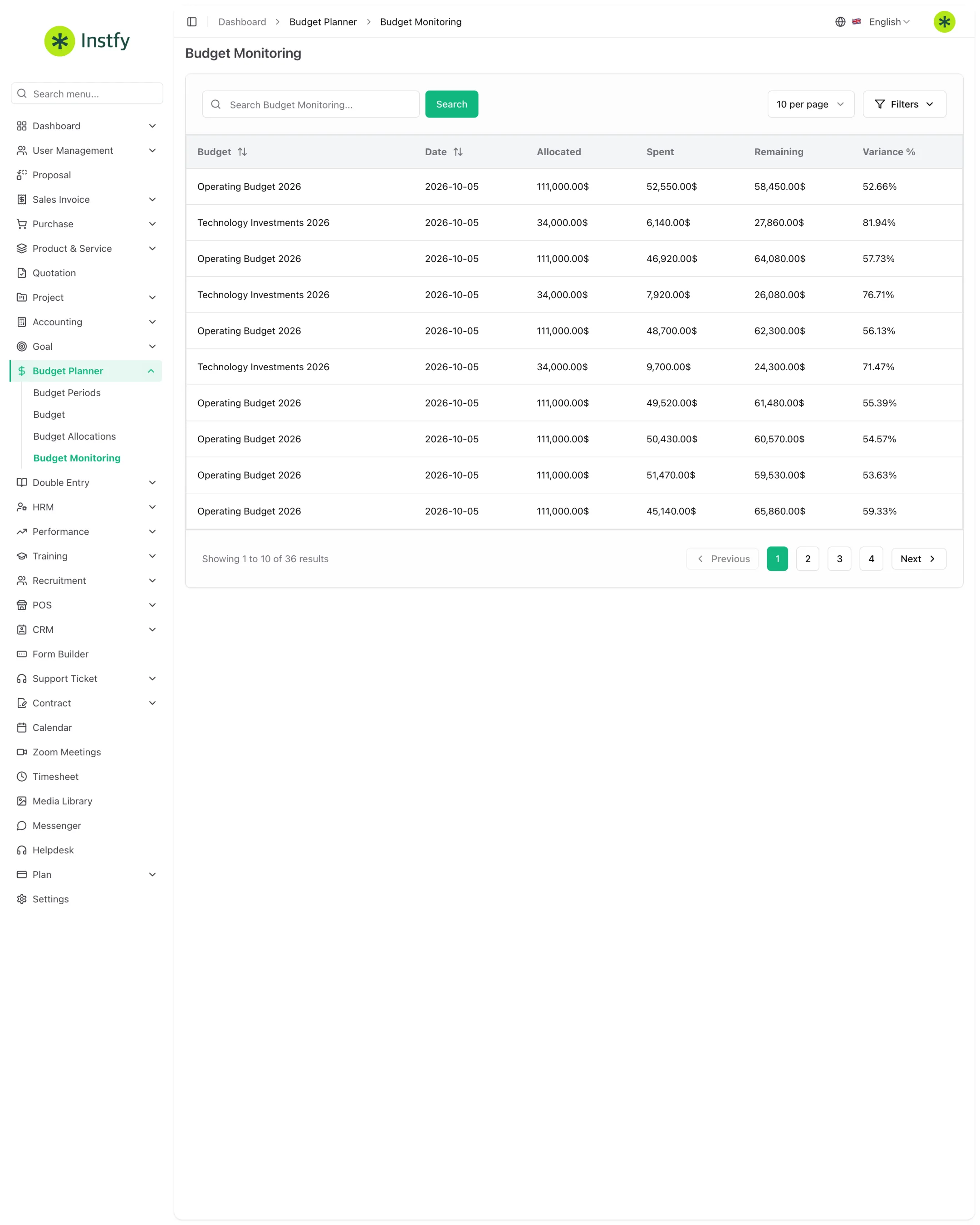
Monitoring compares the allocations with the actual entries and shows where the company is above or below plan.
Menu path: Budget Planner > Budget Monitoring
- Open Budget Planner > Budget Monitoring.
- Select the budget or period you want to analyze.
- For each account, compare the planned amount with the actual amount.
- Watch the variances: expenses above plan and revenue below plan call for action.
- Bring the variances to the finance meeting and decide whether to correct operations or revise the allocation.
Revise the budget throughout the year
A budget is a living document. When reality changes consistently, adjust the allocations.
Menu path: Budget Planner > Budget Allocations
- Open Budget Planner > Budget Allocations and find the allocation.
- Click edit (pencil icon) and change the planned amount.
- Click Save. Monitoring now compares against the new amount.
Complete flow
The budget cycle in ERP Instfy has four stages, plus day-to-day operations:
Budget Periods > Budget > Budget Allocations > Entries in Accounting > Budget Monitoring > Adjustments and next cycle
- Define the period.
- Create the budget for that period.
- Allocate the amounts by account.
- Operate as usual: Sales invoices, Purchasing, and Accounting generate the actuals.
- Monitor monthly and adjust. At the end of the period, create the next cycle and set aligned Goals.
Frequently asked questions
What is the right order for building a budget?
First the period (Budget Periods), then the budget (Budget), followed by allocations by account (Budget Allocations), and finally tracking in Budget Monitoring.
Where does the actual amount come from?
From the entries recorded in ERP Instfy, such as invoices, payments, revenue, and expenses, classified in the chart of accounts. If a transaction is not recorded, the actuals will fall short of reality.
Can I change the budget after it is created?
Yes. Edit the allocations in Budget Allocations when there is a significant change. Monitoring then uses the new amounts.
How often should I check Budget Monitoring?
At least once a month, after the month's entries are complete. Companies with tight cash flow benefit from a weekly look.
What is the difference between a budget and a goal?
The budget plans how much comes in and goes out by account over a period. A goal (Goal module) tracks a specific objective, such as building a reserve or reaching an amount, with milestones and contributions.
Next steps
With the budget running, set goals and keep an eye on your statements.