
Calendar
See your company's appointments and events in a single calendar and, if you like, sync it with Google Calendar.
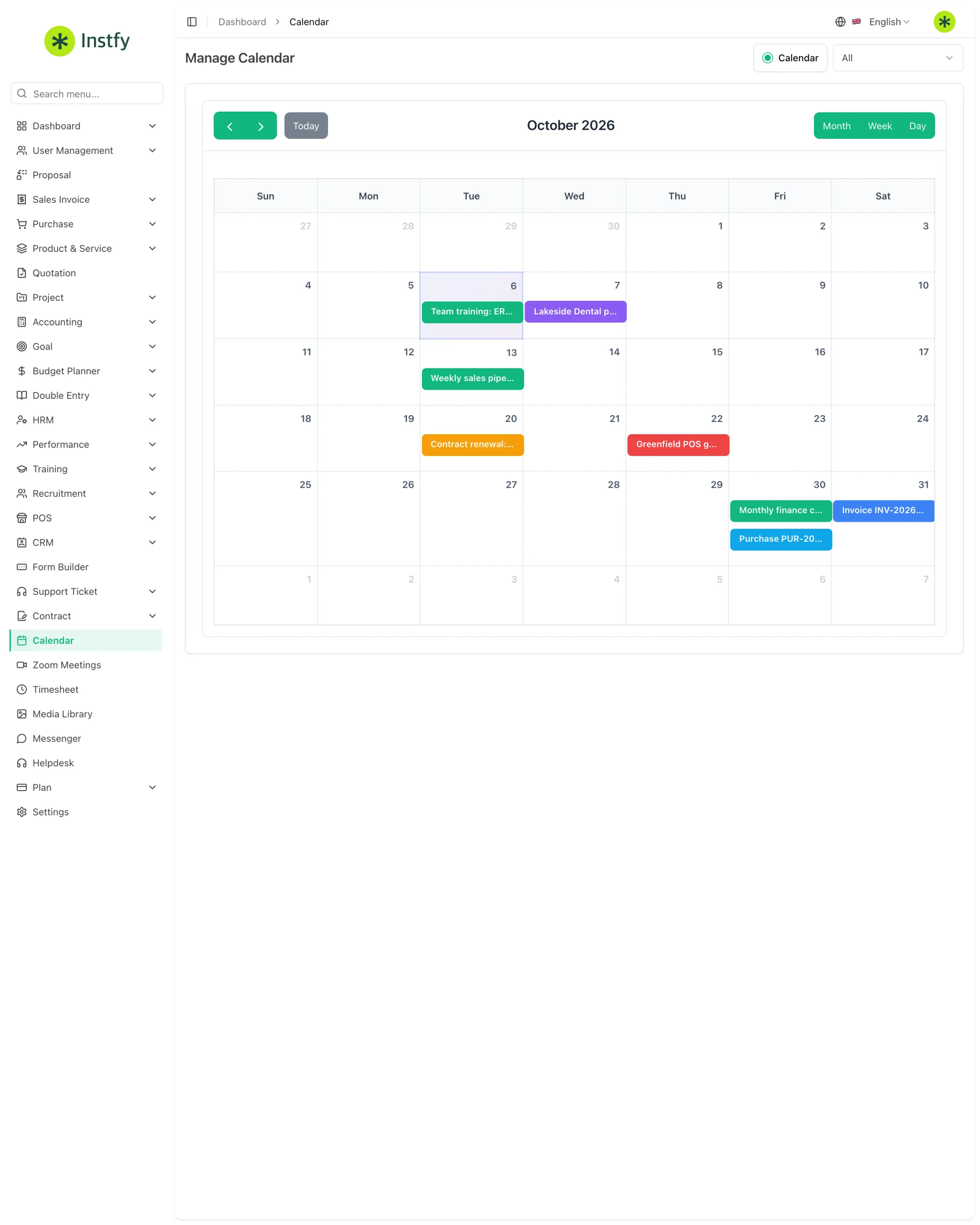
The Calendar is a standalone item in the side menu (route /calendar-view). It shows the appointments recorded in ERP Instfy, such as meetings, events, and deadlines, in a calendar view, so the team can plan the week without checking several modules. The Google Calendar integration is configured in Settings > Google Calendar Settings.
Before you start
- Users must be set up to see the appointments that concern them. See Users and roles.
- To sync with Google Calendar, you need admin access to the company's Google account and to Google Cloud, where the credentials are generated.
View the calendar
Use the calendar as the starting point for your week: appointments, deadlines, and events on a single screen.
Menu path: Calendar
- Open Calendar in the side menu.
- Switch between the available views, such as month, week, and day.
- Use the arrows to move between periods.
- Click an item to see its details.
Record appointments that appear on the calendar
Calendar items come from the system's modules. Create the appointment in the right module and it appears on the calendar.
Menu path: (source module) and then Calendar
- Identify the type of appointment: online meeting, internal event, interview, or other.
- Create it in the corresponding module, for example Zoom Meetings for online meetings or HRM > Events for internal events.
- Open Calendar and check that the appointment appears on the right date.
If the calendar in your account lets you create events directly, you can also click a date to add one. When that is not available, create it through the source module.
Connect to Google Calendar
The integration lets you bring ERP Instfy appointments into your team's Google calendar.
Menu path: Settings > Google Calendar Settings
- In Google Cloud, create or use a project with the Google Calendar API enabled and generate the credentials the integration requires.
- In ERP Instfy, open Settings and go to the Google Calendar Settings tab.
- Turn on the integration and enter the requested details, such as the credentials and the calendar ID.
- Click Save Changes.
- Create a test appointment and check that it appears in Google Calendar.
The Google credentials give access to the company calendar. Store them securely and do not share them in messages or tickets.
Complete flow
- Create appointments in their source modules.
- View everything in Calendar, in the view you prefer.
- If you use Google, configure Settings > Google Calendar Settings.
- Run a test and follow the synced calendar.
Frequently asked questions
Does the calendar show Zoom meetings?
Meetings created in Zoom Meetings are system appointments and can appear on the calendar. Run a test in your account to confirm. See Zoom meetings.
Do I have to use Google Calendar?
No. The calendar works on its own inside ERP Instfy. The integration is optional, for those who also want to see appointments in Google Calendar.
Where do I find the Google credentials?
They are created in your company's Google Cloud console, in the project where the Google Calendar API is enabled. Ask whoever manages your company's Google accounts for help.
Is the project task calendar the same as Calendar?
No. The task calendar lives inside each project, in Project > Projects, and shows only that project's deadlines. Calendar is the general schedule. See Projects and tasks.
Next steps
Set up online meetings and your company's other integrations.