
Automation: how to automate tasks in ERP Instfy
This guide shows, step by step, how to do business automation inside ERP Instfy: automate invoices, automate payment reminders, automate lead capture into your CRM, automate emails, and automate scheduling.
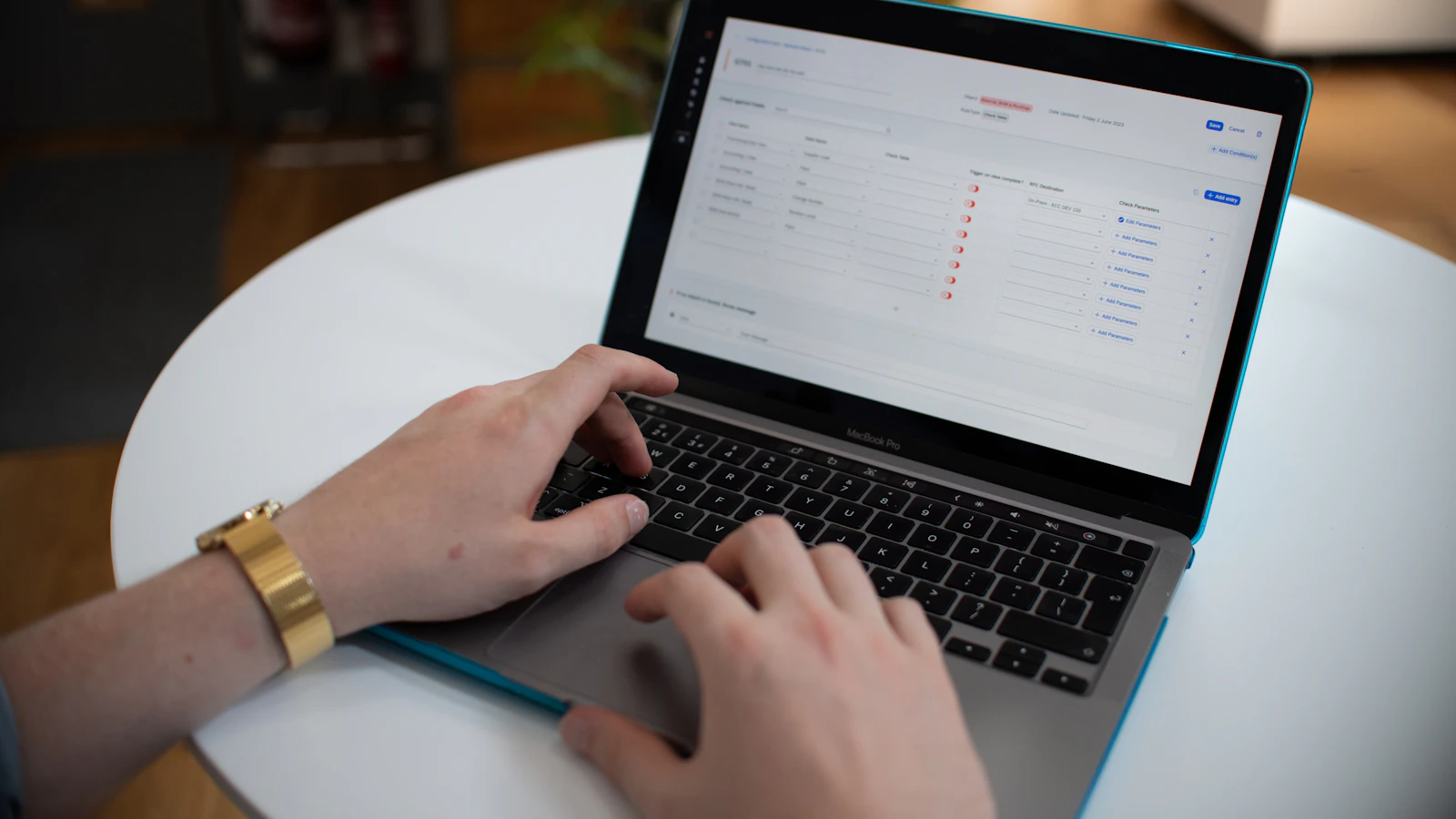
Workflow automation means handing repetitive tasks to your software so your team stops resending invoices, chasing payments, and typing the same emails. Follow the tasks below to set up each automation once.
1. Automate invoices and recurrence
Set an invoice to repeat on a fixed cycle. ERP Instfy generates and sends each invoice on its own, so nobody redoes the work every month.
Menu path: Sales invoices
- Open Sales invoices and click Create to start a new invoice.
- Select the customer, add the products or services, and check the amounts.
- Turn on the Recurring option (recurring invoice) on the invoice.
- Set the cycle (weekly, monthly, or yearly), the start date, and an optional end date.
- Check the box to send by email automatically on each generation.
- Click Save. From here, each invoice is created and sent on the schedule you defined.
Start with the invoices you already know repeat, like subscriptions and contracts. They give you the fastest relief from manual work.
2. Automate payment reminders
Let ERP Instfy chase the customer for you, with automatic notices before and after the due date, to cut late payments without manual follow-up.
Menu path: Settings
- Open Settings and go to Notifications.
- Turn on payment reminders for open invoices.
- Set when each notice fires, for example three days before and one day after the due date.
- Choose the email template used for the reminder.
- Click Save. Invoices now send reminders on their own based on the rules.
3. Automate lead capture
Publish a form that drops every response straight into the CRM as a new lead, so nobody copies data from email into a spreadsheet.
Menu path: Form builder
- Open Form builder and click Create form.
- Drag in the fields you need, such as name, email, phone, and message.
- In the form settings, enable submission to the CRM (form feeds CRM).
- Set each response to become a lead and pick the owner.
- Click Publish and copy the link or embed code for your website.
- Every form submission creates a lead automatically in the CRM.
Ask only for essential fields on the form. Short forms convert more leads, and you enrich the record later inside the CRM.
4. Automate standard emails
Create reusable templates for welcomes, confirmations, and reminders, so you never retype the same message.
Menu path: Settings > Email templates
- Open Settings and click Email templates.
- Click New template and give it a clear name, such as "Welcome" or "Invoice sent".
- Write the subject and the body of the email.
- Insert the available variables, like customer name and invoice number, to personalize automatically.
- Click Save. The template is now available for invoices, reminders, and other ERP Instfy emails.
5. Automate scheduling
Let customers book their own time slots and keep appointments and due dates visible in a single calendar.
Menu path: Calendar
- Open Calendar and set your available time slots.
- Generate the self-service scheduling link to send to customers.
- Turn on automatic event reminders by email for you and the guest.
- Check the Week or Month view to track the bookings coming in.
- Every booked slot becomes a Calendar event, alongside the due dates ERP Instfy already brings in.