
Sales proposals
Create proposals with items and amounts, send them to the customer, record the approval, and convert the proposal into an invoice without retyping anything.
A Proposal is the document in which you show the customer what you will deliver and for how much: products or services, quantities, prices, taxes, discounts, and terms. Use a proposal when the deal is already mature in the CRM and the customer needs a formal offer to make a decision. When they accept, the same proposal becomes a sales invoice.
Before you start
To get the proposal right the first time, have these ready:
- Customer created in Accounting > Customers. See Accounting.
- Items created in Product & Service > Items, with price, unit, and tax. See Products and services.
- Company details, currency, and email set in Settings, so the document and sending work. See Settings.
Menu path: Proposal
Create a proposal
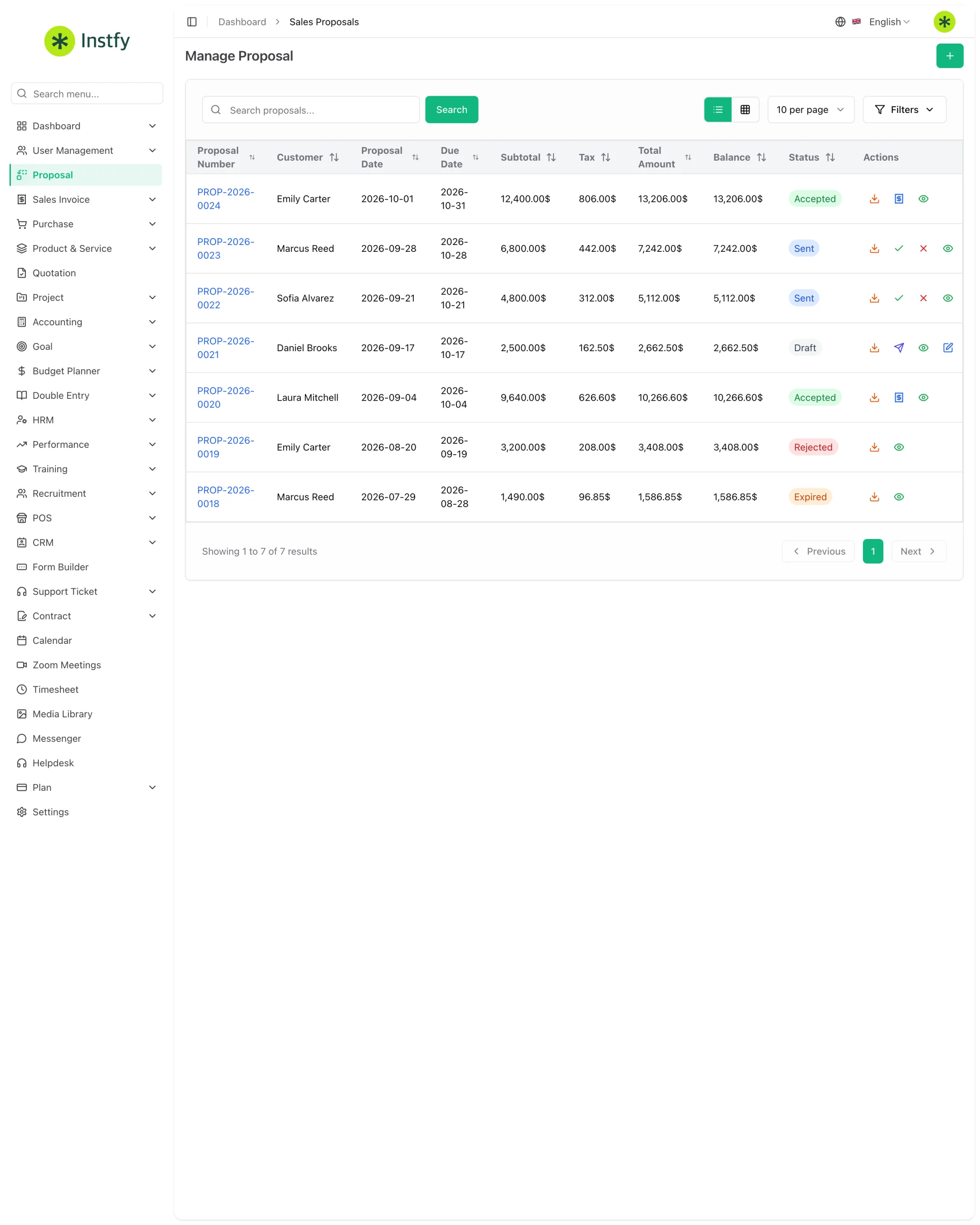
The proposal brings the offer together in a numbered document, ready to send.
Menu path: Proposal
- Open Proposal in the side menu.
- Click Create (or the + icon).
- Select the customer and enter the proposal dates.
- Add the items: choose each product or service, adjust the quantity, and check the price, tax, and discount. The total is calculated automatically.
- If you like, add notes and commercial terms.
- Click Save. The proposal appears in the list with its own number and an initial status.
If an item does not appear in the list, it has not been created yet. Create it in Product & Service > Items and return to the proposal: the price and tax will already be filled in.
Review and send the proposal to the customer
Before sending, check the document the way the customer will see it.
Menu path: Proposal
- In the proposal list, open the proposal you want (view icon).
- Review the customer, items, taxes, discounts, and total.
- Use the send action to email the proposal to the customer, or download/print the document to send it through another channel.
- After sending, the proposal status is updated in the list.
Sending by email depends on the email settings in Settings > Email Settings. If the customer does not receive it, check that setting first. See Settings.
Record approval or rejection
Keeping the status up to date shows how many proposals are open and what your acceptance rate is.
Menu path: Proposal
- Open the proposal the customer has responded to.
- Use the change status action and mark it as accepted (approved) or declined, according to the response.
- If the customer asks for changes before approving, edit the proposal, save it, and send it again.
The exact status names may vary depending on the interface language. What matters is that the list clearly shows what is in draft, sent, accepted, or declined.
Convert the proposal into an invoice
When the customer approves, convert the proposal into a sales invoice. The customer and items are copied over, and you do not retype anything.
Menu path: Proposal
- Open the approved proposal.
- Click the convert to invoice action (Convert to Invoice).
- Review the generated invoice: issue and due dates, items, and total.
- Save the invoice. It now appears in Sales Invoice > Sales Invoice, and the proposal is marked as converted.
Converting instead of re-creating avoids typing errors and keeps the history linked: you know which proposal each invoice came from.
Duplicate a proposal
For customers with similar offers, duplicate an existing proposal and change only what is different. Open the list in Proposal, use the duplicate action on the base proposal, change the customer, items, or amounts, and click Save.
Complete flow
The proposal connects sales to finance:
CRM deal > Proposal > Customer approval > Sales invoice > Customer payment > Reports
- The opportunity is worked in the CRM.
- The offer is formalized in the proposal and sent.
- Once approved, it becomes a sales invoice.
- The payment is recorded in Accounting > Customer Payments (Accounting).
- The revenue appears in the Accounting and Double entry reports.
Frequently asked questions
What is the difference between a proposal and a quotation?
Both present items and prices to the customer. A proposal is usually used as a complete sales offer, tied to the negotiation, and is converted into an invoice when approved. A quotation is a formal price estimate. Use the document that fits your sales process; many companies use only one of the two.
Can I edit a proposal after it has been sent?
Yes, as long as it has not been converted into an invoice. Edit it, save it, and send it to the customer again so they receive the updated version.
Does the proposal already record revenue in finance?
No. A proposal is only an offer. Revenue enters finance only when the proposal is converted into a sales invoice and the customer payment is recorded.
How do I send the proposal by email?
Open the proposal and use the send action. For this to work, the company email must be configured in Settings > Email Settings.
Where do I see the invoice generated from the proposal?
In Sales Invoice > Sales Invoice. The converted invoice appears in the list with the same customer and the same items as the proposal.
Next steps
Once the proposal is approved, move on to invoicing and collecting payment.