
Recruitment and onboarding (Recruitment)
Post job openings, receive candidates, organize interviews and assessments, send offers, and onboard your new hire.
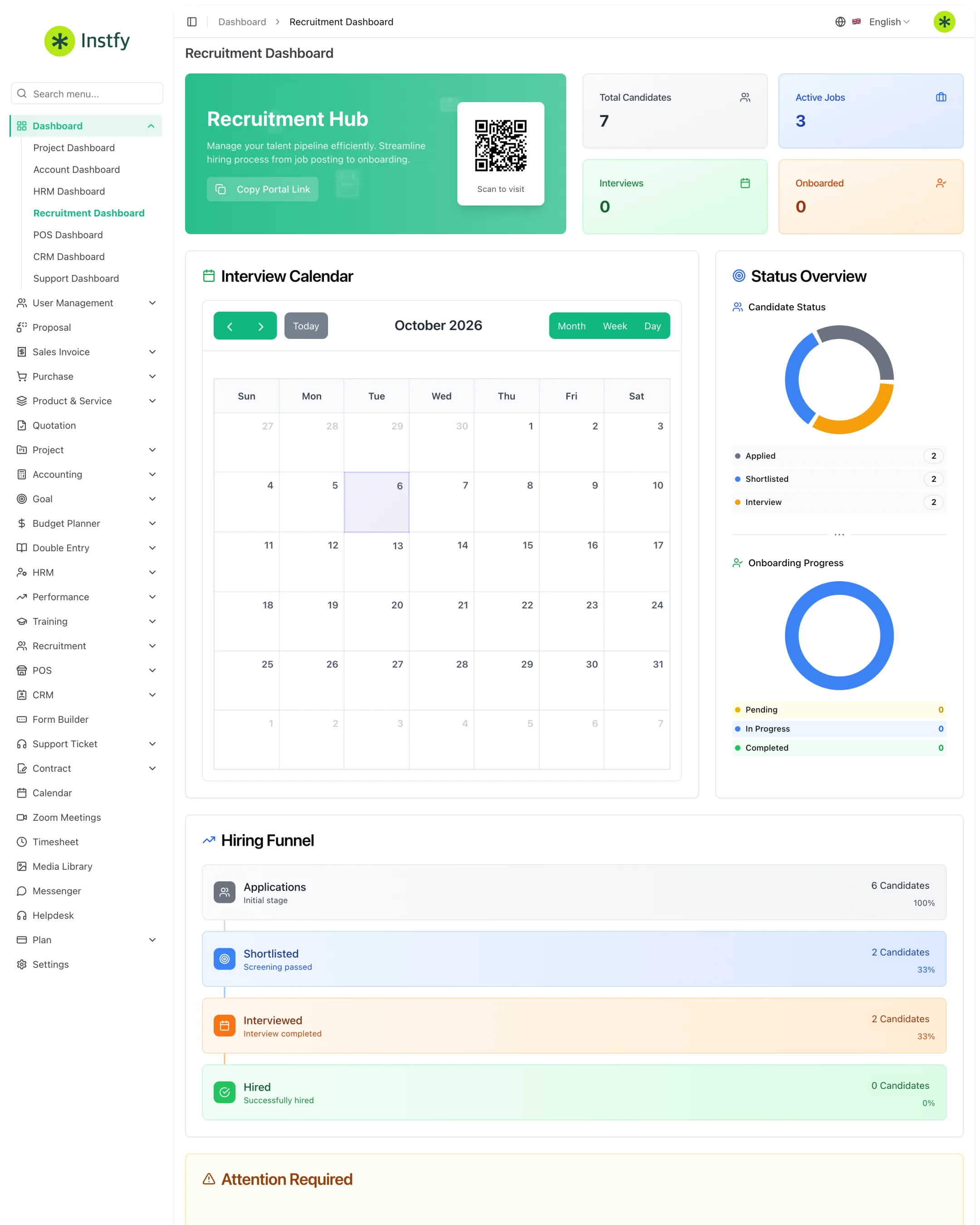
The Recruitment module covers the complete hiring journey: from the open position to onboarding the new employee. Every stage is recorded, which makes it easier to compare candidates, involve interviewers, and not lose anyone along the way. The overview is in Dashboard > Recruitment Dashboard.
Before you start
- Have your HR structure set up (branches, departments, and job titles). See HR, attendance, leave, and payroll.
- Add the people who will conduct interviews as users, in Users and roles.
- Define the job profile, the questions you want to ask, and the stages of the hiring process.
1. Set up the module
Setup prepares the lists used in job postings, such as job types.
Menu path: Recruitment > System Setup
- Open Recruitment > System Setup. The job types screen opens.
- Click the + button (Create) and add the types your company uses, such as full-time, internship, or temporary.
- Review the other lists in the setup's internal menu.
- In Recruitment > Job Locations, add the work locations for your openings.
- In Recruitment > Custom Questions, add extra questions candidates must answer.
2. Post a job opening
The job posting describes the position and gathers all the candidates who apply to it.
Menu path: Recruitment > Job Postings
- Open Recruitment > Job Postings.
- Click the + button (Create).
- Fill in the title, description, requirements, location, job type, and application period, and select the custom questions that apply.
- Click Save and keep the posting active to receive applications.
Be specific about the requirements. A clear description reduces off-target applications and saves screening time.
3. Record and screen candidates
All candidates are centralized, with their details, resume, and the position they applied for.
Menu path: Recruitment > Candidates
- Open Recruitment > Candidates to see the applications received.
- To add someone manually, click the + button (Create), fill in the details, link the job posting, and attach the resume.
- Open each candidate to review their profile and answers.
- Update the candidate's status as screening moves forward.
4. Organize and conduct interviews
Rounds define the stages of the process; interviews schedule each conversation; feedback records the interviewer's opinion.
Menu path: Recruitment > Interview Rounds, Interviews, and Interview Feedback
- In Interview Rounds, add the rounds of the process, for example: screening, technical interview, leadership interview.
- In Interviews, click + (Create), select the candidate, round, interviewer, date, and time, and save.
- After the conversation, open Interview Feedback and record the interviewer's evaluation.
- Repeat for each round until the final decision.
For online interviews, create the meeting in Zoom meetings and send the link to the candidate.
5. Run assessments
Tests and assessments complement interviews with objective data.
Menu path: Recruitment > Candidate Assessments
- Open Recruitment > Candidate Assessments.
- Click the + button (Create).
- Select the candidate and record the assessment given and the result.
- Click Save. The result is kept with the candidate's history.
6. Send the offer
Once you have chosen the candidate, record the job offer and track the response.
Menu path: Recruitment > Offers
- Open Recruitment > Offers.
- Click the + button (Create).
- Select the candidate and fill in the offer terms, such as position, salary, and start date.
- Click Save and update the status when the candidate accepts or declines.
7. Run onboarding
Onboarding ensures the new employee receives access, equipment, and guidance without anything being forgotten.
Menu path: Recruitment > Checklist Items and Recruitment > Candidate Onboarding
- In Checklist Items, add the standard onboarding items, such as signed contract, email account created, equipment delivered, and initial training.
- In Candidate Onboarding, click + (Create) and select the approved candidate.
- Track and check off each checklist item as it is completed.
- At the end, add the person in HRM > Employees if they are not yet in HR.
Complete flow
- Set up job types, locations, and questions.
- Post the opening in Job Postings.
- Screen candidates in Candidates.
- Run the rounds in Interviews and record the Interview Feedback.
- Run assessments in Candidate Assessments.
- Send the offer in Offers.
- Complete onboarding in Candidate Onboarding and add the employee in HRM.
- Track everything on the Recruitment Dashboard.
Frequently asked questions
What is the difference between Interview Rounds and Interviews?
Interview Rounds are the stages of the hiring process, defined once. Interviews are the scheduled conversations with a candidate, within a round.
What are Custom Questions for?
They let you ask candidates for a position questions specific to your company, in addition to the standard details. The answers help with screening.
Does the approved candidate become an employee automatically?
Do not count on it. At the end of onboarding, check whether the person is already in HRM > Employees and, if not, add them.
Can I involve managers from other areas in interviews?
Yes. Add them as users with permission for the module and select them as interviewers. They record their opinion in Interview Feedback.
Next steps
With your new employee hired, bring them into HR and plan their first training.