
CRM: leads, deals, and sales pipeline
Capture leads, convert them into deals, move everything through the pipeline, and track conversion in the ERP Instfy CRM.
The CRM is where every sale begins. Each interested contact comes in as a lead, gets qualified, and, once there is a real opportunity, becomes a deal that moves through stages until it is won or lost. Use the CRM whenever you want to know who is in the pipeline, where each opportunity stands, and which channels bring in the most customers.
Before you start
The CRM works best when the pipeline structure is ready before the first lead arrives. Check that you have:
- Sales team users created and given CRM permissions. See Users and roles.
- Pipelines, stages, sources, and labels set up in CRM > System Setup (task below).
- Customers can be added later, in Accounting > Customers, once the deal is closed. See Accounting.
| Menu | What you do there |
|---|---|
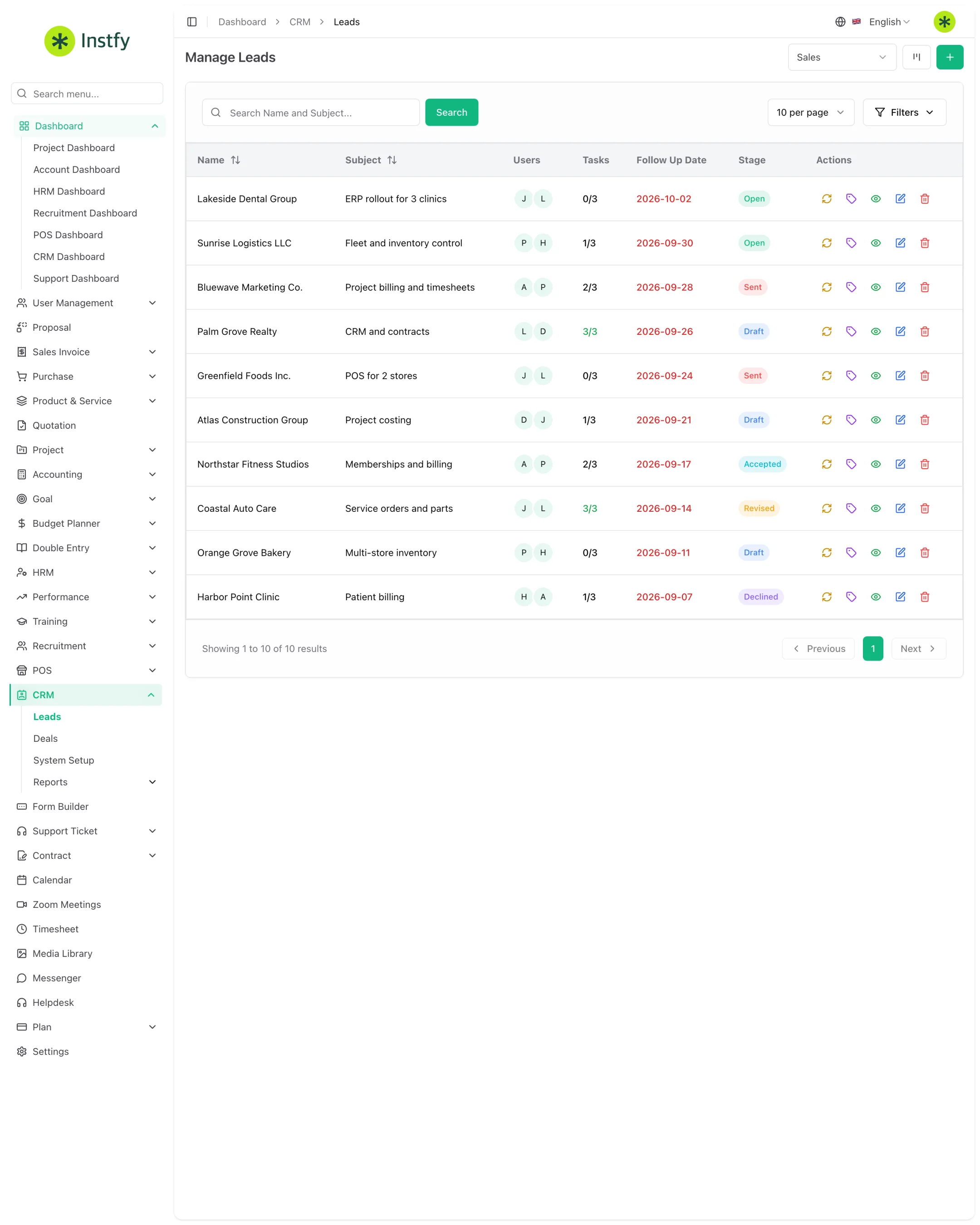
| CRM > Leads | Capture and qualify interested contacts |
| CRM > Deals | Track opportunities with a value through to closing |
| CRM > System Setup | Configure pipelines, stages, sources, and labels |
| Dashboard > CRM Dashboard | View lead and deal numbers |
Set up pipelines, stages, sources, and labels
The pipeline defines the path a lead and a deal follow. Set it up once and the whole team works with the same language.
Menu path: CRM > System Setup
- Open CRM > System Setup. The screen opens on the pipelines area, with the other settings in tabs or side links.
- Under pipelines, click Create (or the + icon), name the pipeline (e.g., "B2B Sales"), and click Save.
- Under lead stages and deal stages, add each stage of your process, such as "New", "Qualified", "Proposal sent", and "Negotiation", linking them to the correct pipeline.
- Under sources, add the channels contacts come from, such as website, referral, ad, and event.
- Under labels, create tags to highlight situations, such as "Urgent" or "Repeat customer".
- Go back to CRM > Leads: the stages you created now appear as pipeline columns.
Start with only a few stages (4 to 6). A lean pipeline is easier to keep up to date and produces more reliable reports.
Create a lead
Every contact who has shown interest should become a lead, so no one gets lost in spreadsheets or scattered conversations.
Menu path: CRM > Leads
- Open CRM > Leads.
- Click Create (or the + icon).
- Fill in the contact details, such as subject, name, email, and phone, and choose the responsible user.
- Select the pipeline and, if the form asks for it, the starting stage.
- Click Save. The lead appears in the first stage of the pipeline.
- Open the lead to complete the record: sources, labels, products of interest, notes, and activities.
Leads can also come in on their own through forms built in the Form Builder. When you publish a form and connect it to the CRM, every submitted response creates a lead, with no manual data entry.
Move the lead through the pipeline
Updating the stage after every contact is what keeps the pipeline true to reality.
Menu path: CRM > Leads
- Open CRM > Leads in board (kanban) view.
- Drag the lead card to the column for its current stage.
- Open the lead to record what happened: notes, tasks, calls, or emails, depending on the tabs available.
- Use the list view when you need to filter or find a specific lead.
Convert a lead into a deal
When a lead proves to be a real opportunity, with interest and buying potential, convert it into a deal. The lead's data is carried over.
Menu path: CRM > Leads
- Open the qualified lead in CRM > Leads.
- Click the convert to deal action (Convert to Deal).
- Review the suggested data, enter the estimated value and the customer if the form asks for them, and confirm.
- The lead is now marked as converted, and the new deal appears in CRM > Deals, in the first stage of the deal pipeline.
Only convert what has a concrete chance of closing. Keeping cold leads out of deals makes the pipeline value more reliable for revenue forecasting.
Work a deal through to closing
The deal holds the value, stage, owners, and negotiation history.
Menu path: CRM > Deals
- Open CRM > Deals. Deals appear as cards by stage.
- To create a deal directly, without a lead, click Create, fill in the main details, and click Save.
- Drag the card between stages as the negotiation moves forward.
- Open the deal to record tasks, notes, files, and team members involved.
- When you need to formalize pricing, create a [proposal](#/proposal) or a [quotation](#/quotation) for the customer.
- At the end, mark the deal as won or lost, depending on the outcome.
Track results on the CRM Dashboard
The dashboard shows the volume of leads and deals and helps you see where the pipeline gets stuck.
Menu path: Dashboard > CRM Dashboard
- Open Dashboard > CRM Dashboard.
- Check the lead and deal totals and how they are distributed by stage.
- Spot stages where cards are piling up: they usually point to a bottleneck in the process.
- Bring these numbers to your sales meeting and adjust actions by channel and by salesperson.
Complete flow
The CRM is the entry point of the sales cycle in ERP Instfy:
Form or manual entry > Lead > Deal > Proposal or Quotation > Sales invoice > Customer payment > Reports
- The contact comes in as a lead, manually or through the Form Builder.
- Once qualified, it becomes a deal in CRM > Deals.
- Pricing is formalized in a proposal or quotation.
- Once approved, the offer becomes a sales invoice, and the payment is recorded in Accounting.
- If there is an ongoing service agreement, it is managed in Contracts.
Frequently asked questions
What is the difference between a lead and a deal in ERP Instfy?
A lead is a contact who has shown interest and is still being qualified. A deal is a concrete opportunity, usually with an estimated value, that moves through stages until it is won or lost. You convert the lead into a deal once the opportunity is clear.
Where do I create the sales pipeline stages?
In CRM > System Setup. That is where you add pipelines, lead and deal stages, sources, and labels. The stages you create appear as columns in CRM > Leads and CRM > Deals.
Can I receive leads automatically from my website?
Yes. Create a form in the Form Builder and connect it to the CRM. Every response submitted through the form creates a lead in the pipeline you choose, with no manual data entry.
Can I have more than one sales pipeline?
Yes. You can add several pipelines in CRM > System Setup, for example one for B2B sales and another for partnerships, each with its own stages.
Where do I see the CRM numbers?
In Dashboard > CRM Dashboard, which shows lead and deal totals and how they are distributed across the pipeline stages.
Next steps
With the pipeline running, learn how to formalize the offer and turn it into revenue.