
Company settings
Set up ERP Instfy tab by tab: brand, system, company, currency, support, contracts, email, notifications and integrations.
Settings define how the system behaves for the whole company: the name and logo that appear on documents, the currency for amounts, email sending and integrations with other services. It is worth doing this on the very first day, before recording invoices and purchases.
Before you start
- Log in with the Company user. See Roles and permissions.
- Have your logo, company details and email credentials (outgoing mail server) on hand.
Menu path: Settings
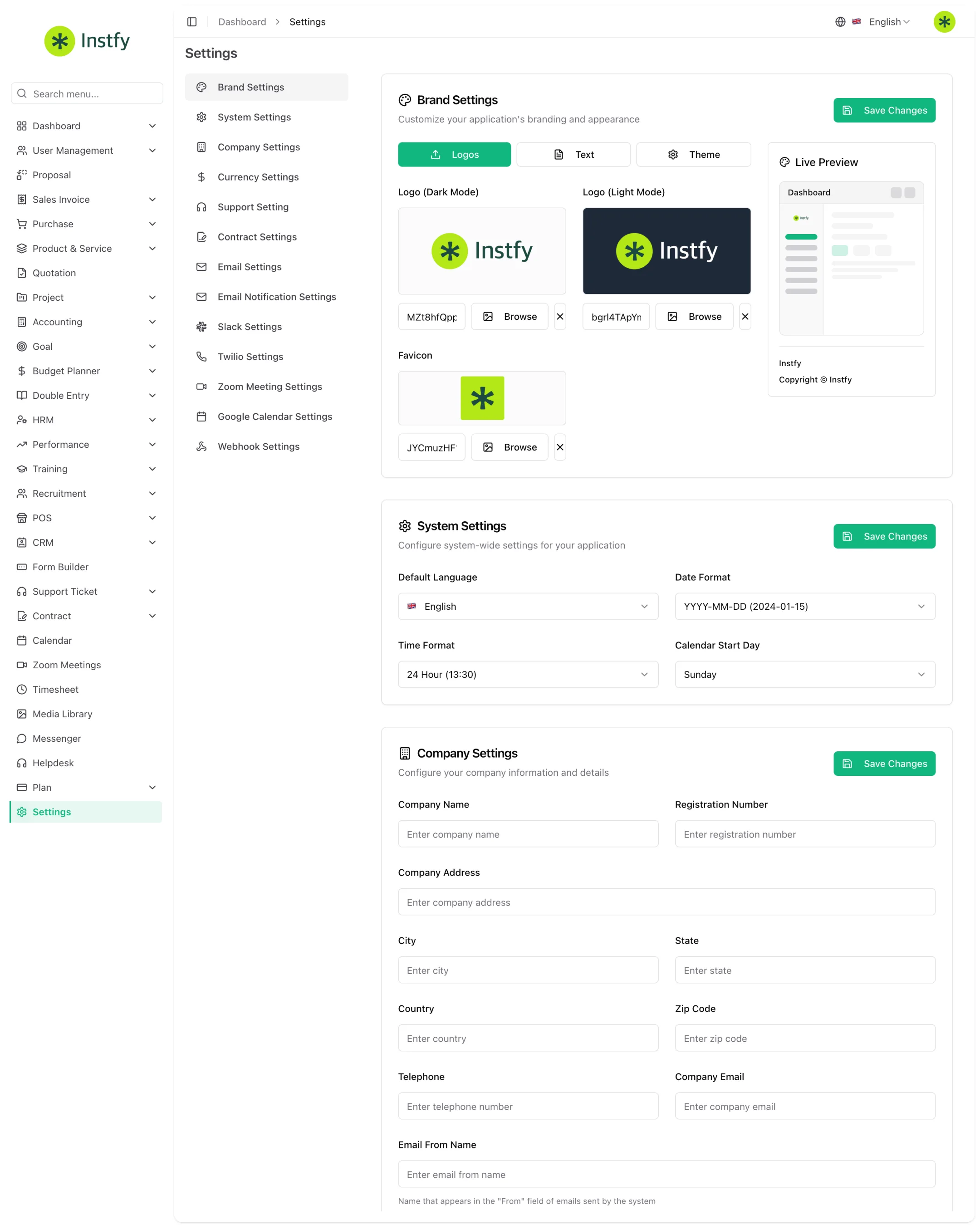
The screen is divided into tabs. In each tab, change what you need and click Save Changes to save.
The tabs, in order
| Tab | What to set up | Required at the start? |
|---|---|---|
| Brand Settings | Logos, brand texts and theme (colors and appearance) | Yes |
| System Settings | General system preferences, such as date and time formats | Yes |
| Company Settings | Company details used on documents: name, address, contacts | Yes |
| Currency Settings | Currency and number format | Yes |
| Support Setting | Preferences for the ticket module | If you use Support Ticket |
| Contract Settings | Preferences for the contracts module | If you use Contract |
| Email Settings | Outgoing email server | Yes |
| Email Notification Settings | Which events trigger an automatic email | Recommended |
| Slack Settings | Sending alerts to Slack | Optional |
| Twilio Settings | Sending SMS through Twilio | Optional |
| Zoom Meeting Settings | Connection to Zoom for meetings | Optional |
| Google Calendar Settings | Sync with Google Calendar | Optional |
| Webhook Settings | Sending events to other systems | Optional |
Set up the brand (Brand Settings)
The brand appears in the system and on documents sent to customers.
- Open Settings and click Brand Settings.
- Under Logos, upload the company logo in the requested versions.
- Under Text, adjust the brand texts, such as the title displayed.
- Under Theme, choose the colors and appearance.
- Click Save Changes. The new look is applied.
Use a high-resolution logo with a transparent background. It appears on light and dark screens and on PDF documents.
Set up system and company
- Open the System Settings tab and review the general preferences, such as date and time format.
- Click Save Changes.
- Open the Company Settings tab and fill in the company details, such as name, address, phone and email.
- Click Save Changes. These details will now appear on invoices, proposals and quotations.
Set up the currency (Currency Settings)
The currency applies to invoices, purchases, payments, dashboards and reports.
- Open the Currency Settings tab.
- Choose the company currency and adjust the number format (symbol and separators, according to the options on the screen).
- Click Save Changes.
- Open a list with amounts, such as Accounting > Revenue, and check that the symbol appears correctly.
Set the currency before your first entry. Changing it later can leave old documents with symbols or amounts that are hard to compare in reports.
Set up support and contracts
If your company uses the Support Ticket or Contract modules, open the Support Setting and Contract Settings tabs, review the preferences and save. If you do not use these modules yet, leave them for later. See Tickets and knowledge base and Contracts.
Set up email and notifications
Email sending is used for password recovery, sending documents and automatic alerts.
- Open the Email Settings tab.
- Fill in the outgoing server details provided by your email provider, such as server, port, username, password and sender.
- Click Save Changes and use the test email option, if available.
- Open the Email Notification Settings tab and turn on the events that should trigger an email.
- Click Save Changes.
The details for each integration (email, Slack, Twilio, Zoom, Google Calendar and Webhook) are in Integrations.
Frequently asked questions
Which tabs do I need to set up on the first day?
Brand Settings, System Settings, Company Settings, Currency Settings and Email Settings. The others can be set up when you start using the corresponding module or integration.
I changed the logo and it does not appear. What should I do?
Check that you clicked Save Changes and reload the page. If it still does not appear, clear your browser cache. See Troubleshooting.
Can an employee change the settings?
Settings are the responsibility of the Company user. Keep this access restricted, because changes affect the whole system.
Where do I set up categories, pipelines and account types?
These records are in each module's System Setup item, such as Accounting > System Setup or CRM > System Setup, not on the Settings screen.
System emails are not arriving. Where do I start?
Review the details in the Email Settings tab, especially server, port, username and password, and send a test email. See Integrations and Troubleshooting.
Next steps
With the company set up, add your team and connect the integrations.