
Plan and subscription
See your plan, change plans, pay through a payment gateway or bank transfer and track orders in the ERP Instfy Plan menu.
The plan defines which modules and limits your company has in ERP Instfy. In the Plan menu, the Company user checks the current plan, subscribes to or changes plans, and tracks subscription orders and bank transfer payment requests.
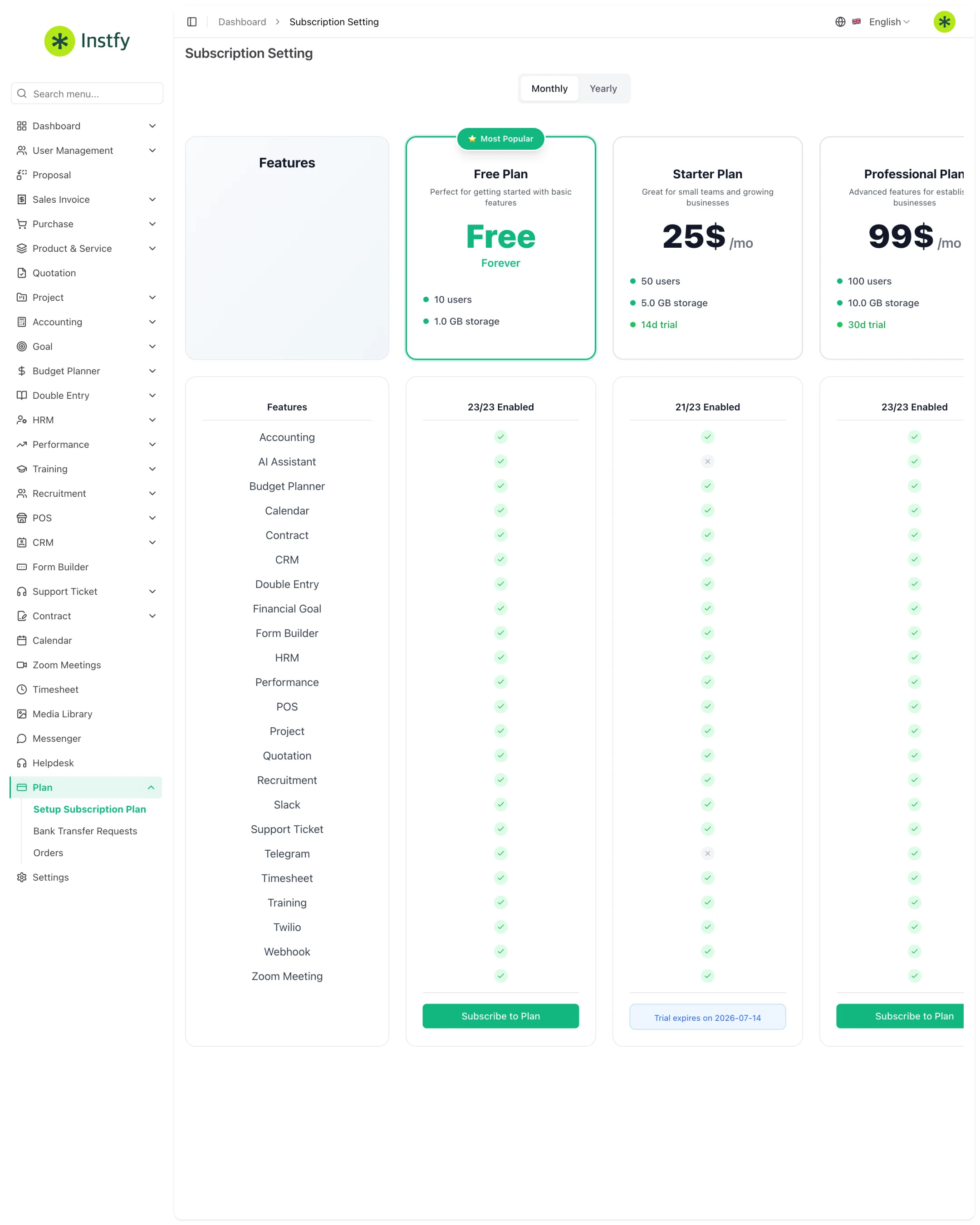
Before you start
- Log in with the Company user. Only this user sees the Plan menu.
- Have your payment method ready: a card or wallet accepted by the gateway, or the details for a bank transfer.
- Public plans can also be viewed at https://erp.instfy.com/pricing.
What is in the Plan menu
| Item | What it is for |
|---|---|
| Setup Subscription Plan | Viewing the current plan, comparing plans and subscribing to or changing plans |
| Orders | History of subscription orders and the status of each payment |
| Bank Transfer Requests | Bank transfer payment requests and the status of each one |
View the current plan
Menu path: Plan > Setup Subscription Plan
- Open Plan > Setup Subscription Plan.
- See which plan is active and what it includes.
- Compare it with the other plans shown on the screen.
Change plans
Upgrade when you need more modules or higher limits.
- Open Plan > Setup Subscription Plan.
- Choose the plan you want and the billing period, when there is an option.
- Click the button to subscribe to the plan.
- Choose the payment method: one of the gateways shown or bank transfer.
- Complete the payment. Once it is confirmed, the new plan's modules and limits are unlocked.
Before changing, check that the new plan includes every module your team already uses. A module outside the plan no longer appears in the menu.
Pay through a gateway
ERP Instfy accepts online payment through payment gateways, such as Stripe, PayPal, Mercado Pago and others. The available gateways appear on the payment screen. When you choose one, you are taken to the gateway's environment to complete the payment and then return to the system.
Pay by bank transfer
Menu path: Plan > Bank Transfer Requests
- When subscribing to the plan, choose the bank transfer option.
- Use the bank details shown to make the transfer from your bank.
- Upload the proof of payment, if the screen asks for it.
- Track the request in Plan > Bank Transfer Requests. The plan is unlocked after the payment is confirmed.
Bank transfer payments need to be verified. That is why activation is not immediate as it is with gateway payments.
Track orders
Menu path: Plan > Orders
- Open Plan > Orders.
- See the list of subscription orders, with plan, amount, date and status.
- Use this list to check payments and keep the subscription history.
When the plan expires
If the plan expires without renewal, access to modules may be limited or suspended until the account is brought up to date, and your team may be unable to work. Track the expiration date in Plan > Setup Subscription Plan and renew ahead of time. If you have questions about deadlines and terms, contact support.
If you pay by bank transfer, make the payment well before the due date, because confirmation depends on verification.
Frequently asked questions
Where can I see which plan my company has?
In Plan > Setup Subscription Plan. Only the Company user has access to this menu.
What payment methods are accepted?
Online payment through a gateway, such as Stripe, PayPal and Mercado Pago, and bank transfer. The available gateways appear on the payment screen itself.
I paid by bank transfer. When is the plan unlocked?
After the payment is verified and the request in Plan > Bank Transfer Requests is approved. Track the status on that screen.
A module disappeared from the menu after I changed plans. Why?
The new plan probably does not include that module. Compare plans in Setup Subscription Plan or contact support.
Where can I find the subscription payment history?
In Plan > Orders, with the list of orders, amounts, dates and status.
Next steps
With your plan up to date, follow the dashboards and finish the implementation.