
Form Builder
Build forms with the fields you need, publish them by link, and track the responses, including feeding them into the CRM.
The Form Builder creates forms without any coding: surveys, quote requests, registrations, internal records, or contact capture. Every submission is recorded in ERP Instfy, and you view the responses in one place instead of piecing together emails and spreadsheets.
Before you start
- Define the form's purpose and which data you really need. Fewer fields mean more responses.
- If the responses will become sales opportunities, set up the CRM pipeline first in CRM > System Setup. See CRM: leads and deals.
- Have the introduction text ready, along with the message people should see after submitting.
Create a form
The form is the capture point. Give it a name that makes clear where the responses come from.
Menu path: Form Builder
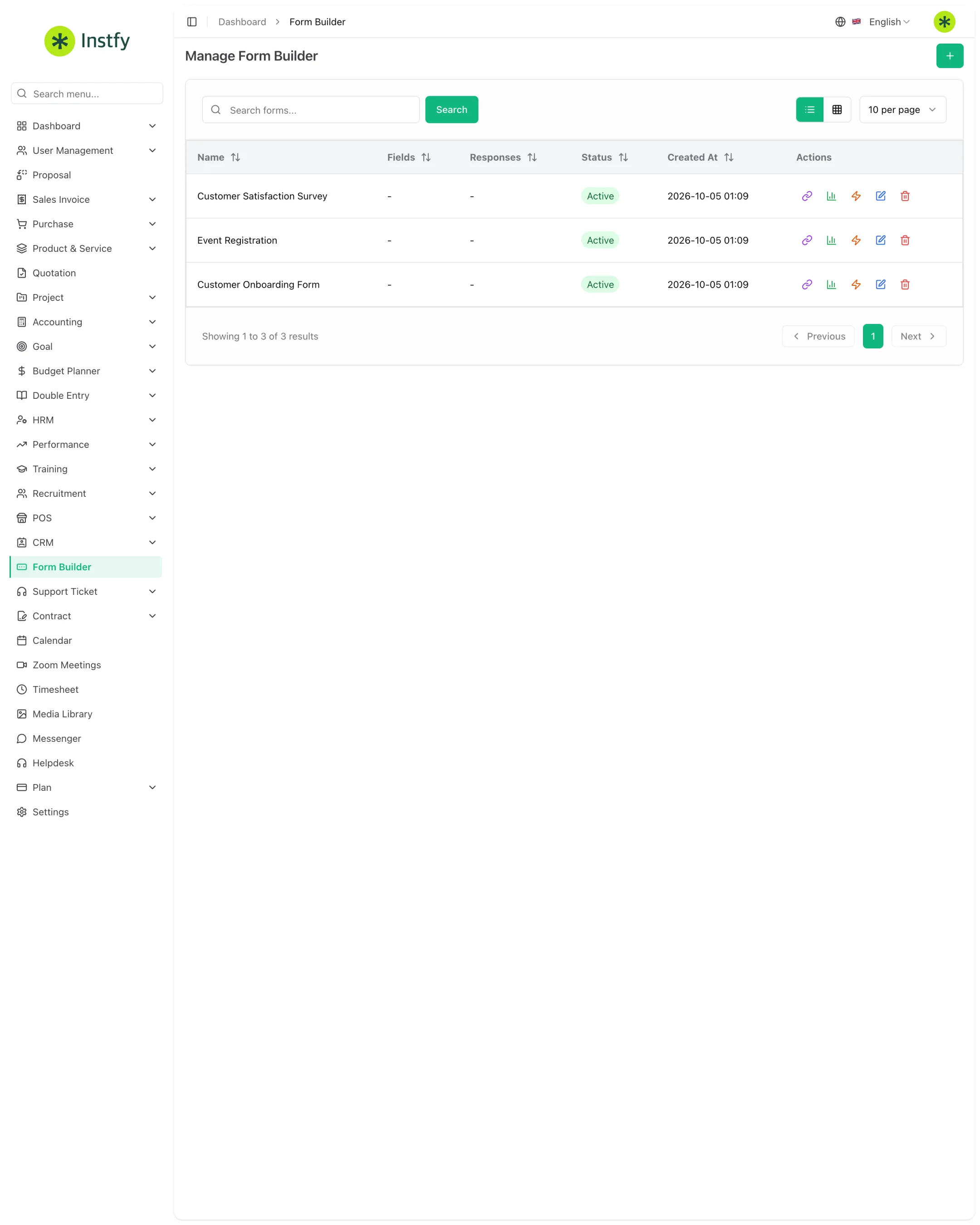
- Open Form Builder in the side menu.
- Click the + button (Create).
- Enter the form name, for example "Website quote request" or "Satisfaction survey".
- Click Save. The form appears in the list, ready for fields.
Include the source in the name, such as "Quote, Instagram" or "Contact, website footer". That way you know which channel each response came from without opening the form.
Add and configure fields
Fields define which data you collect. Add only what is essential.
Menu path: Form Builder > (open the form)
- In the Form Builder list, open the form's fields area.
- Add a field and choose the appropriate type from the options offered (for example, text, email, number, or a list of options).
- Write the label people will see and, for a list, add the options.
- Mark only the indispensable fields as required.
- Save and repeat for each field. Check the final order before publishing.
Too many required fields make people give up before submitting. Ask for a name and one way to get in touch; everything else can be asked later.
Publish and share the form
Publishing makes the form available to whoever will fill it out, inside or outside the company.
Menu path: Form Builder
- In the Form Builder list, find the finished form.
- Copy the form's public link using the corresponding action in the list.
- Share the link on your website, on social media, by email, or by WhatsApp.
- Open the link in a private window and make a test submission to confirm everything works.
View the responses
Every submission is recorded in the form. This is where you track and follow up on contacts.
Menu path: Form Builder > (open the form) > Responses
- In the Form Builder list, open the form's responses.
- See the submissions received, with the date and the data entered.
- Open a submission to see all the answered fields.
- Follow up: reply to the person, record the contact in the CRM, or notify the responsible team.
Use the form with the CRM
When the form captures prospects, ideally every response should reach the sales pipeline.
Menu path: Form Builder > (open the form) and CRM > Leads
- Open the form and check whether there is an option to convert responses into CRM leads.
- If there is, turn on the option, map the form fields to the lead data, such as name and email, and choose the pipeline.
- Save and make a test submission.
- Open CRM > Leads and confirm that the test lead appeared.
- If the option is not available on your plan, create the lead manually in CRM > Leads from the response.
Complete flow
- Create the form with a name that identifies the source.
- Add the essential fields and set which are required.
- Publish, share the link, and make a test submission.
- Track the responses and follow up on each one.
- For sales lead capture, connect the form to the CRM and work the leads in the pipeline.
Frequently asked questions
Do people filling out the form need an ERP Instfy login?
No. The public link can be filled out by anyone, such as customers and visitors to your website. Only those who manage the forms and responses need access to the system.
Can I change a form after it is published?
Yes, but be careful when removing or renaming fields on a form that has already received responses, so you do not lose the ability to compare old and new submissions. If the change is large, consider creating a new form.
How do I know which campaign each response came from?
The simplest way is to create one form per channel or campaign, with the source in the name. That way the responses arrive already separated.
Do responses become leads automatically?
It depends on the form configuration. When conversion to the CRM is available and turned on, each submission creates a lead. Otherwise, create the lead in CRM > Leads from the response.
Next steps
Bring the responses into the sales pipeline and track conversion.